
An easy screen to use
Every page is an icon. Tap the one you want, or swipe straight from page to page without coming back. Put them in the order you like and hide the ones you never open.
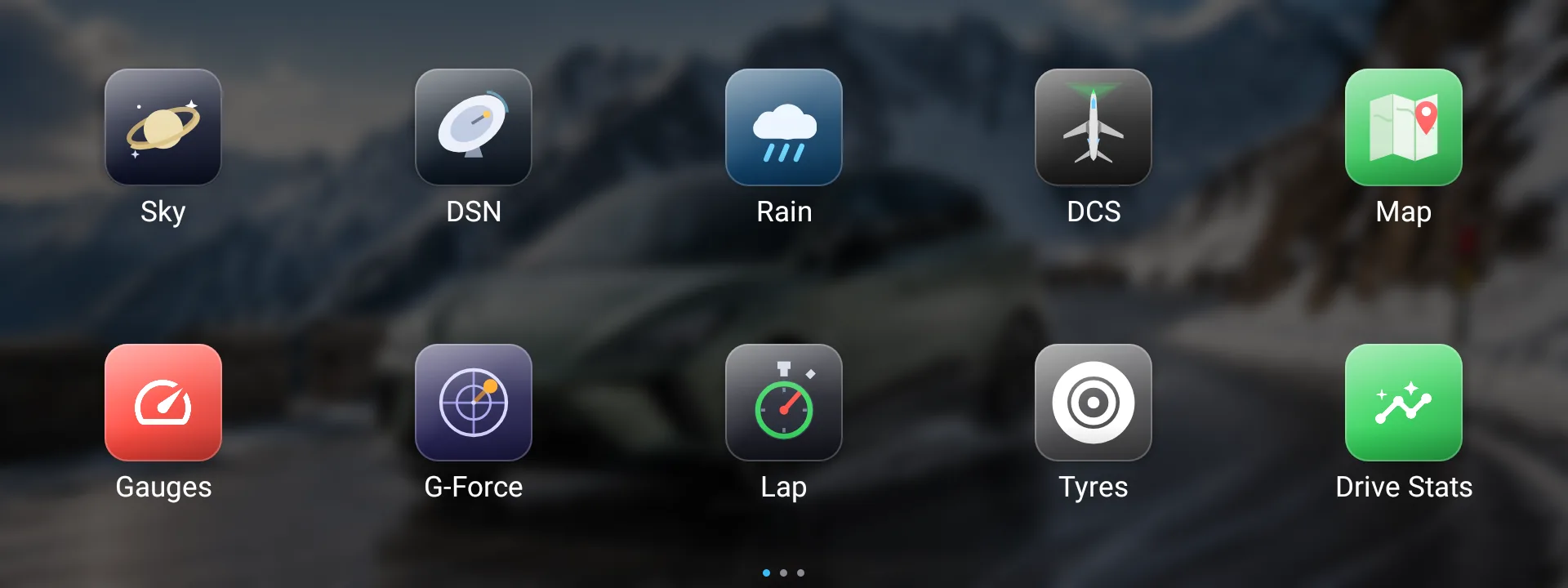
- Twenty-one pagesEvery page has an icon. Tap one to open it.
- Or just swipeOnce you are on a page, swipe left and right to move between them — you never have to come back here.
- Your order, your pagesHold any icon for about a second and the icons wiggle — drag it where you want it. They stop by themselves a few seconds after your last move. Hide the ones you never open in Settings.
What the drive actually did
The climb and descent of the drive so far, which way the car is pointing, and which way the wind is heading — good for working out your energy use against the wind and the hills.
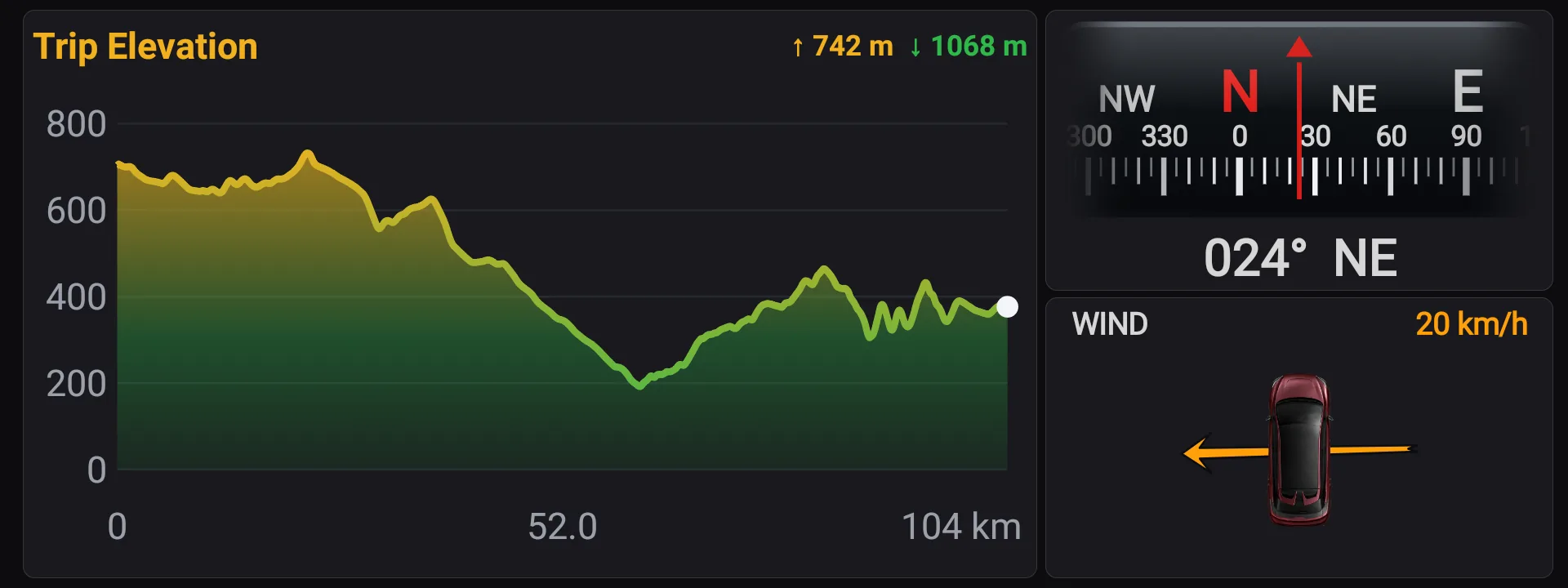
- Climb and descentThe shape of the drive so far, with the metres up and the metres down. Distance along the bottom comes from the car's own speed sensor; the height comes from GPS.
- CompassWhich way the car is pointing, in degrees and by name.
- Wind on the car (requires hotspot)An arrow showing which way the wind is hitting you — a tailwind, a crosswind or a headwind — and how hard.
- Tap any of itThe wind box swaps to the power this drive has used and put back through regen, the compass changes how it looks, and the graph fills the screen.
The dash you wish it came with
Power, speed and battery on three big dials, with charge, range and what the trip is costing around them — and one-tap buttons for your profiles, lane keeping and one-pedal driving. Tap a dial to change what it shows, and pick from 23 colour looks.
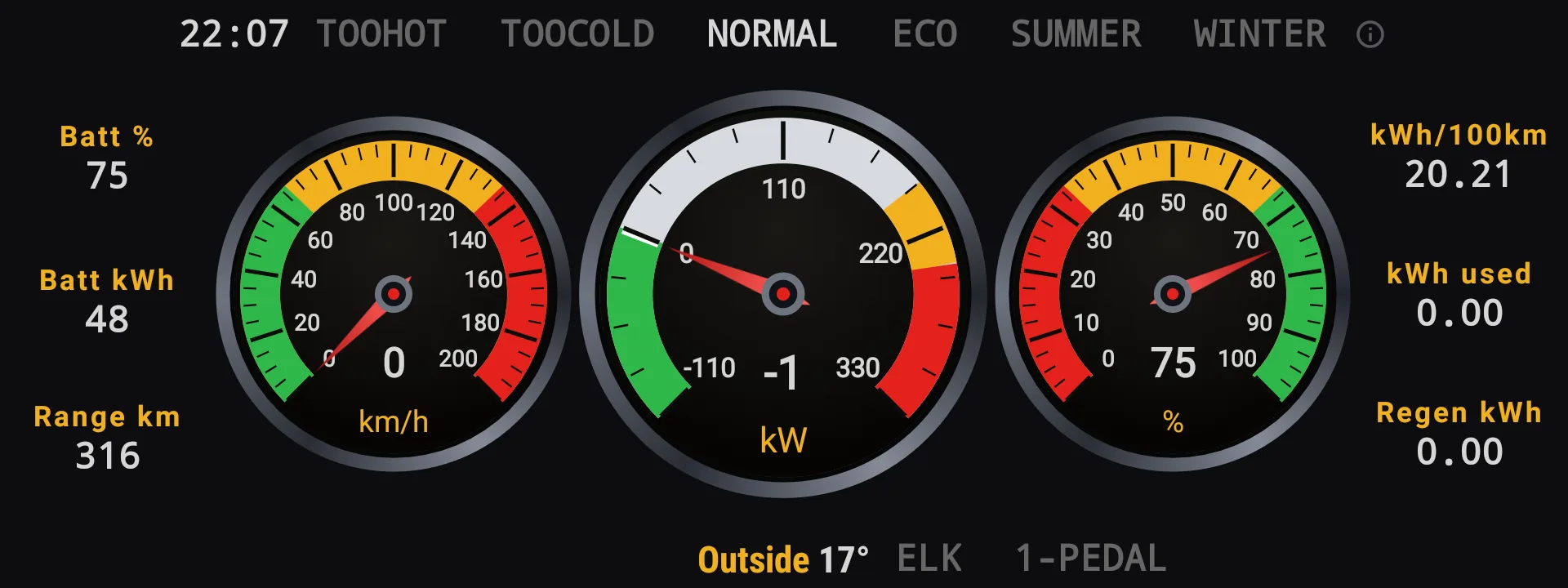
- At a glanceEasy to read dials and information for the driver and passengers.
- Left dialPower in kW, battery amps or speed — a tap moves it to the next.
- Centre dialTap its lower half for speed, battery % or power. Tap its upper half to change the colour of all three dials: 23 looks, from plain white to the classic green, amber and red.
- Right dialkWh used this drive, battery volts, amps, kW or battery % — a tap moves it to the next.
- Batt % · Batt kWhCharge left, as a percentage and as usable energy. Tap Batt kWh to see how long this trip has been going, then how far it has gone.
- kWh used · Regen kWhEnergy used for the electric motors and energy recovered via the braking regen for this trip.
- kWh/100kmYour average over the last 1000 km — or 5, 10, 20, 50, 100, 250 or 500 km if you would rather it followed your recent driving more closely. Tap the figure to change it.
- Outside temperatureAlong the bottom, beside your own two buttons.
- PowerRealtime of what the electric motors are really doing, on whichever dial you put it.
- Range kmThe car's own range figure. Or, if you prefer, the car's figure adjusted by your driving over the last 5 to 1000 km, compared with your long-run average. If the car doesn't give a range, Zoomy works it out from your own consumption, keeping a 5% reserve.
- Speed0–200 km/h, from the car's own speed sensor — with an offset in Settings if you want it to read the same as the MG’s own speedo.
- The little ⓘTop right: tap it for a list of everything on the page you can tap.
- Your own two buttonsChoose them in Settings → GAUGES: lane keeping (ELK), one-pedal, the overspeed alarm, the speed-limit tone, the lane-warning sound, energy saving, or a step to your next profile. They work while you drive.
- ELKEmergency lane keeping — the car’s steering nudge when you drift out of your lane. One tap turns it off and on without going into the MG’s own menus. The car switches it back on at the start of every drive; a profile holds it where you want it.
- 1-PEDALOne-pedal driving — lifting off slows the car hard enough to stop it, so you rarely touch the brake. One tap turns it off and on.
- Your profiles along the topUp to seven of your saved profiles, picked in Settings → GAUGES. One tap applies the whole profile straight away — climate, drive mode, regen and the assistance settings together, at any speed.
Music
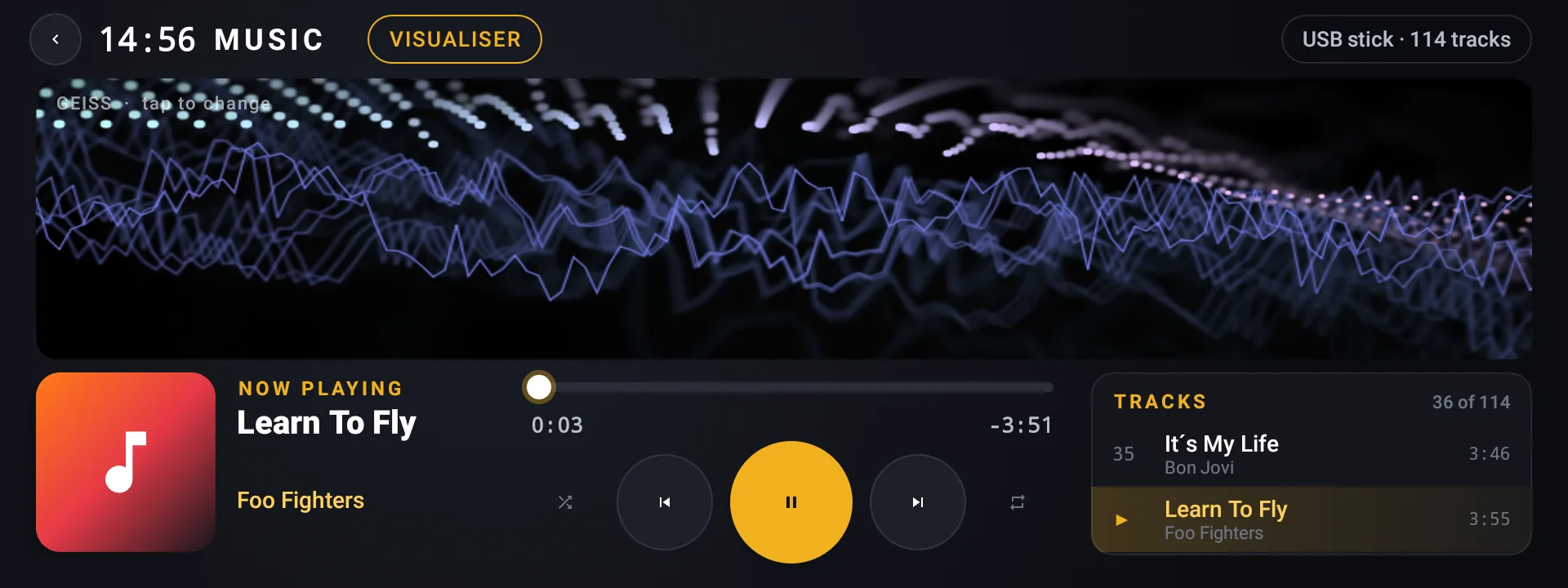
- Plays your USB stickMP3, M4A, FLAC, OGG and WAV songs straight off a USB stick, with the track list, shuffle and repeat.
- VisualiserTap VISUALISER and the top of the screen moves to the song that is playing. Tap the picture to change its look.
- Its own tileOpen it from the Music tile on the home screen.
Power against speed, pull by pull
Accelerate hard and Zoomy draws the power the battery gave at every speed, like a dyno sheet. There is nothing to start — it arms itself — and every pull is saved with the battery %, the outside temperature and the tyres, so you can compare one day with the next.
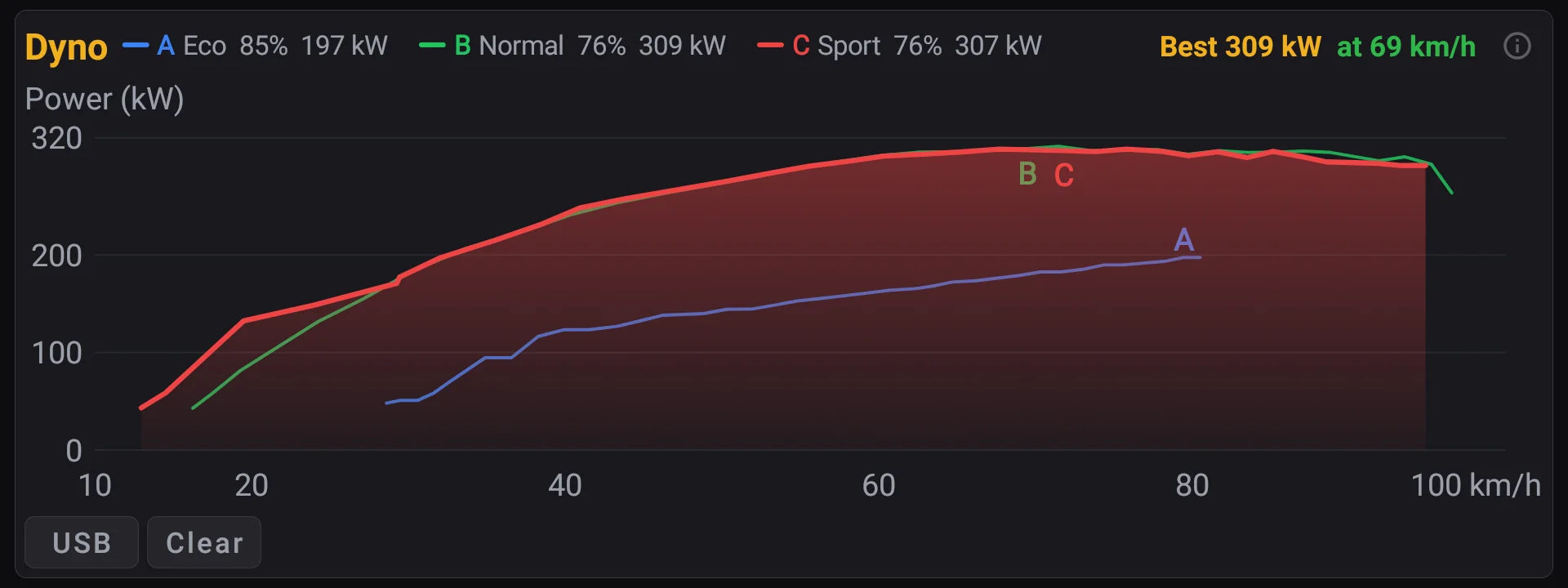
- Arms itselfNothing to press. Accelerate hard from any speed, or from a standstill, and it records the pull, then stops by itself when you ease off or the power drops away. A gentle pull-away is not kept, and the page says why.
- What it measuresThe power leaving the battery, so the air-conditioning and everything else running is in it. It is not a figure measured at the wheels.
- One line per drive modeThe strongest pull in each mode gets its own colour and a letter at its peak — Eco blue, Normal green, Sport red — with the best figure, and the speed it came at, along the top.
- kW, PS or hpTap the power numbers down the left side of the graph.
- km/h or mphTap the speed numbers along the bottom.
- A second scaleTap the right edge of the graph for the power in the other two units, or g-force — how hard the car accelerated, worked out from its speed. Keep tapping to take it away.
- Every pull is savedWith its date, the drive mode, the battery % at the start, the outside temperature and all four tyres’ temperatures and pressures — so you can see whether a fuller battery makes a difference. With an OBD dongle connected, the battery and inverter temperatures too. Up to 300 pulls, kept for a year.
- Tap a pullSee everything it recorded, or delete it. Clear forgets them all.
- Save to USBUSB copies every pull to a stick: a report to read, and a spreadsheet file to plot from. Each pull can also save its own dyno sheet.
- Before your first pullThe graph shows the most the battery has given at each speed over all your driving.
Watch a charge go in
Sitting in the car while it charges? The power going in and the battery level are drawn as they happen, with how much the battery gained, how many kWh went in and how long it took. Step back through earlier charges with OLDER and NEWER.
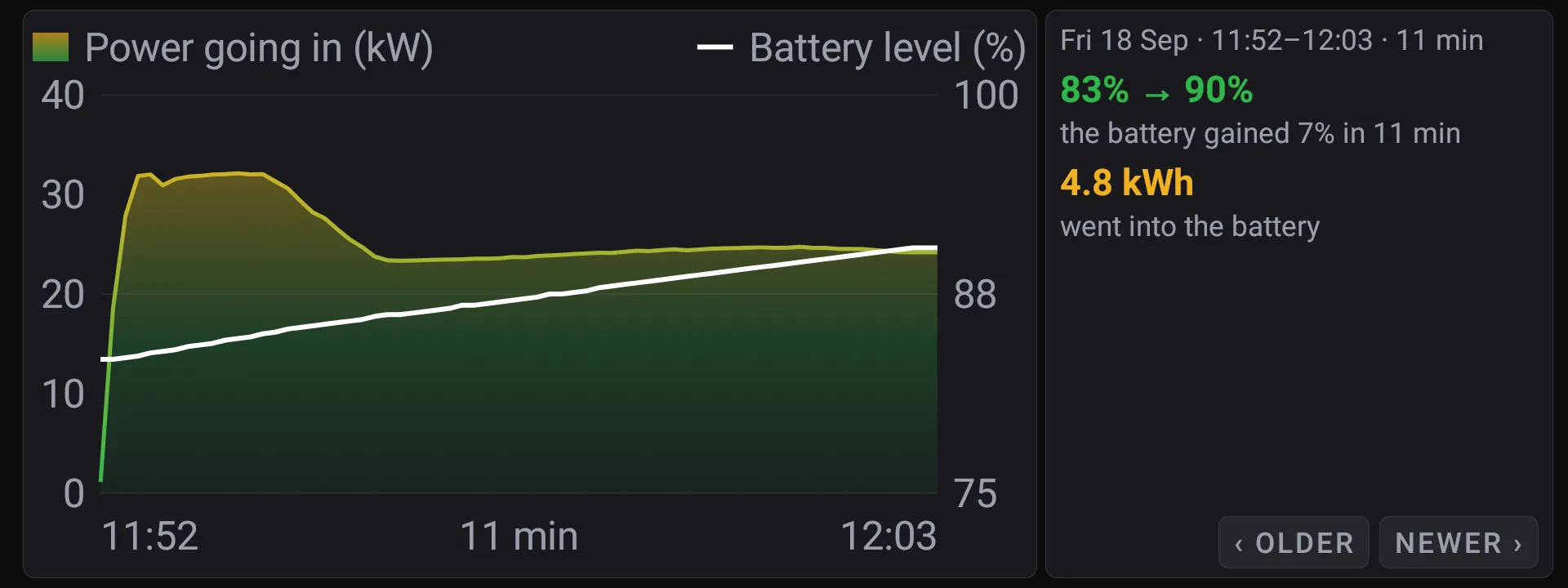
- The whole charge on one graphPower going in, in kW, and the battery level on its own scale beside it, from plug-in to the last reading.
- The numbers that matterWhere the battery started and finished, how much it gained and how long it took, and the kWh that went in.
- Every charge it watchedOLDER and NEWER step through the charges Zoomy saw, kept for a year.
- Eleven looksTap the graph to change its colours, with or without the fill — swipe the picture above to see all eleven.
The weather where you actually are
Temperature and what it feels like, the UV index in plain words, the rain since 9am, wind, sunrise and sunset — read from the Bureau's own feeds for the nearest station, with which station and how old the reading is. Needs the car on Wi-Fi or your phone's hotspot.
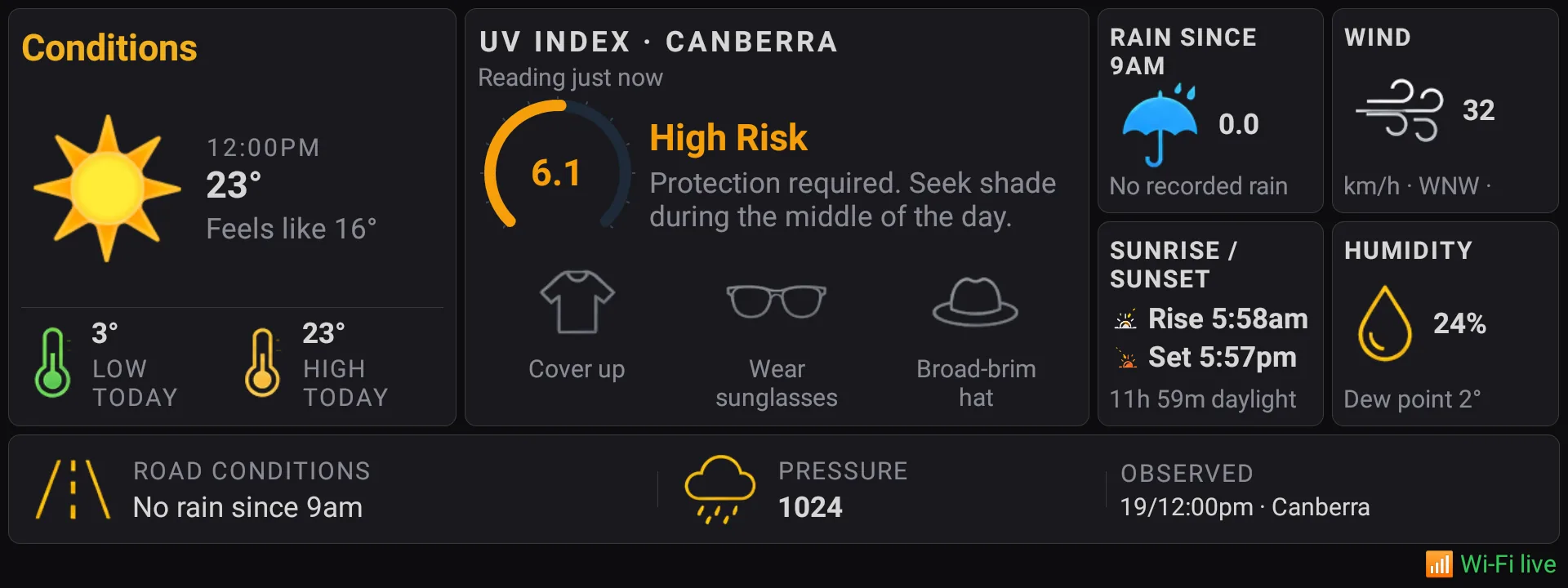
- Now, and todayTemperature and what it actually feels like, with the day's low and high beside it.
- UV indexWith the advice in plain words rather than just a number — shirt, sunglasses, hat.
- The rest of the dayRain since 9am, wind and gusts, sunrise and sunset with the daylight left, humidity and dew point, pressure.
- Says where it came fromRead from the Bureau's and ARPANSA's own public feeds, naming the station and how old the reading is — never a made-up number, and it says so when it cannot reach them.
One tap sets the whole car
Save up to ten driving profiles. Each one carries drive mode, regen, energy saving, the driver assistance settings, the climate, the heated seats, the heated wheel and the windows, and applies the lot in one tap. A profile can also keep the seat heat where you set it, warm you up for seven minutes and then hand over to another by itself.
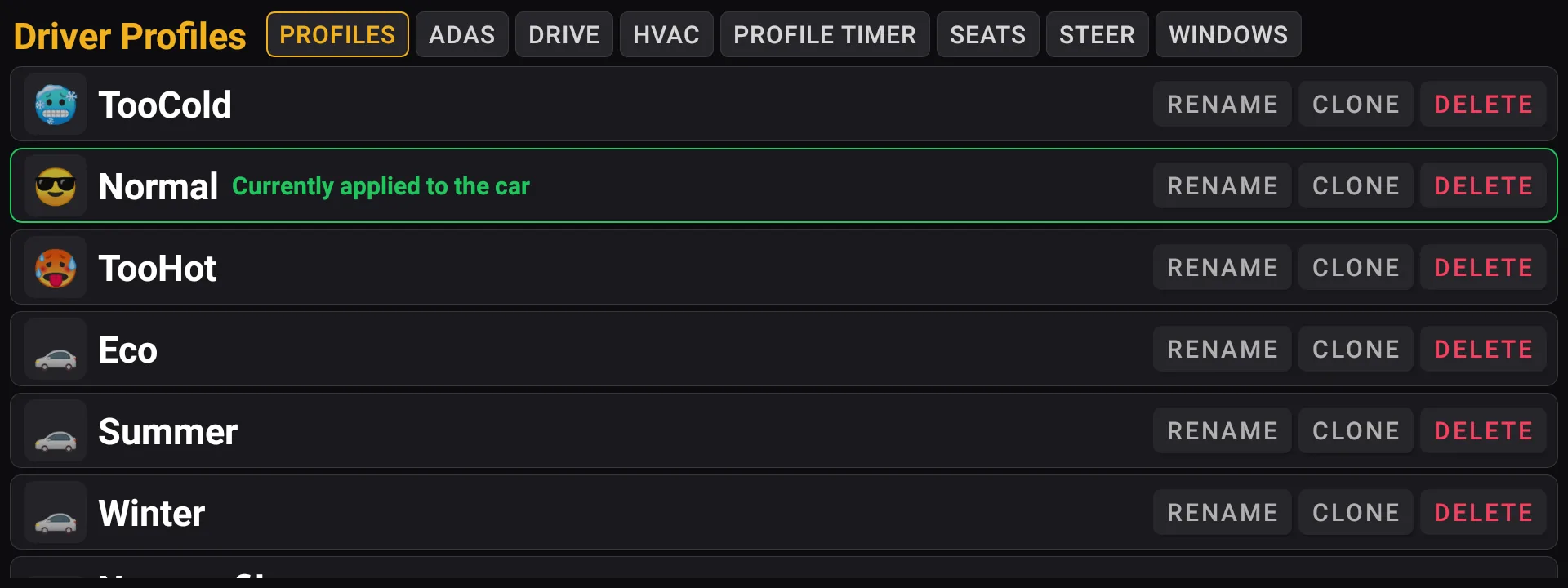
- One tap, whole carDrive mode, regen, driver assistance, cabin temperature, air conditioning, heated seats, the heated wheel and the windows, all set together.
- The windows tooThe WINDOWS tab can close all four windows, or open them a quarter, half or all the way, whenever the profile is applied — including the automatic one at start-up. LEAVE, the default, never touches them. First you calibrate the windows once, in Settings → APP → Windows: you run each window down and up with the car’s own switches while Zoomy watches, then, in Park, Zoomy tries each one itself. Until that is done no profile moves any glass. A quarter or half works from all four closed.
- Applies the moment you tapEverything applies straight away, at any speed, with no confirmation step.
- Picks itself when the car startsZoomy reads the outside temperature and applies your Cold, Normal or Hot profile based on what you want. Very customisable through an easy to use settings page.
- Seat heat that stays where you set itThe MG turns the seat heat down a step every ten minutes or so. Tell a profile to put it back every 5, 10, 15, 20 or 30 minutes and it stays at the level you chose.
- The heated wheel tooThe same put-back for the steering wheel heat, on its own timer.
- A profile with a timerRun a profile for 5 to 30 minutes, then switch to another by itself. For example, on a cold morning: seat heaters and a warm wheel for the first seven minutes, then back to Normal.
- Leave a setting aloneThe driving, assistance, climate and window rows have a LEAVE choice, so a profile changes only what you want changed and touches nothing else.
- Rename, clone, deleteStart from a profile that is close, copy it, give it a name. The list always shows which profile the car is on right now.
- Two buttons of your own on the Gauges pageAlong the bottom, beside the outside temperature: lane keeping, one-pedal, the alarms, energy saving, or a step to your next profile.
- On the steering wheelHold one ★ button to open Zoomy. Hold the other to open Driver Profiles, a page you pick, step to your next profile, or show a camera.
- Up to ten custom profilesBuild your own, customise them and make the car yours.
How quick is it, really
0–60, 0–100 and the 400 m, timed off the car's own speed sensor, plus a g-meter for acceleration, braking and cornering. Every run is kept, best first.
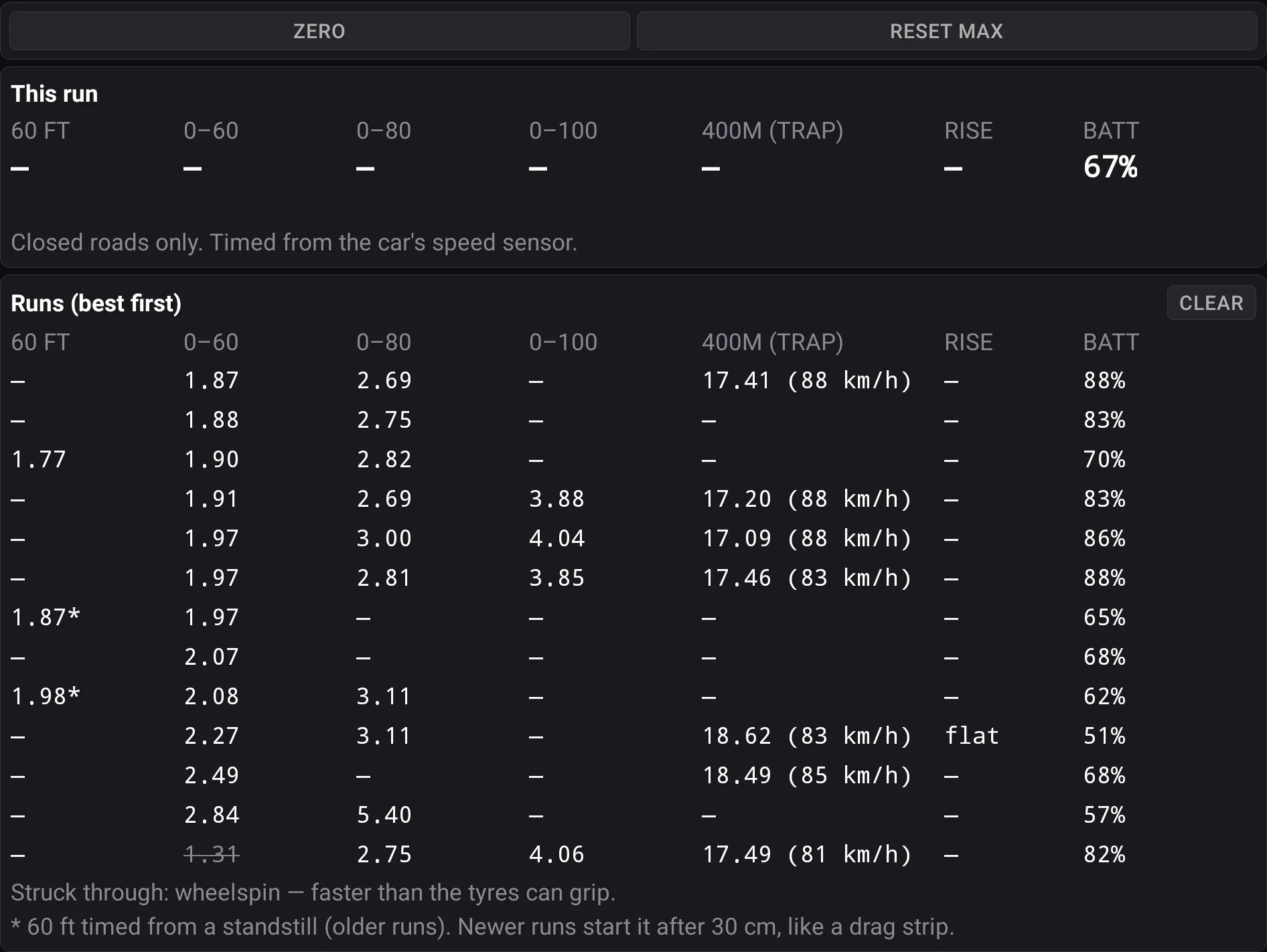
- Acceleration timer0–60, 0–100, the 400 m elapsed time and the trap speed at the end of it.
- Arms itselfStop, then floor it — no countdown to fumble, nothing to press as you launch.
- G-meterLive acceleration, braking and cornering force, with the session maximum held beside it.
- Speed-sensor timingTimed from the car’s own speed sensor rather than GPS, so it does not depend on sky view or a fix.
- The run tableEvery 0–60, 0–100, 400 m and trap speed the car has recorded, kept between drives, best first.
- Zero · Reset maxZERO calibrates to your car’s resting attitude; RESET MAX clears the session peaks.
- About this screenshotThe 0–60 of 1.31 s at the top of the table is struck through here, on this page: it was most likely wheelspin. The app itself now strikes it too.
What it is really costing you
Every trip and every charge, priced against your own electricity rates — not a national average. Take the whole record with you on a USB stick.
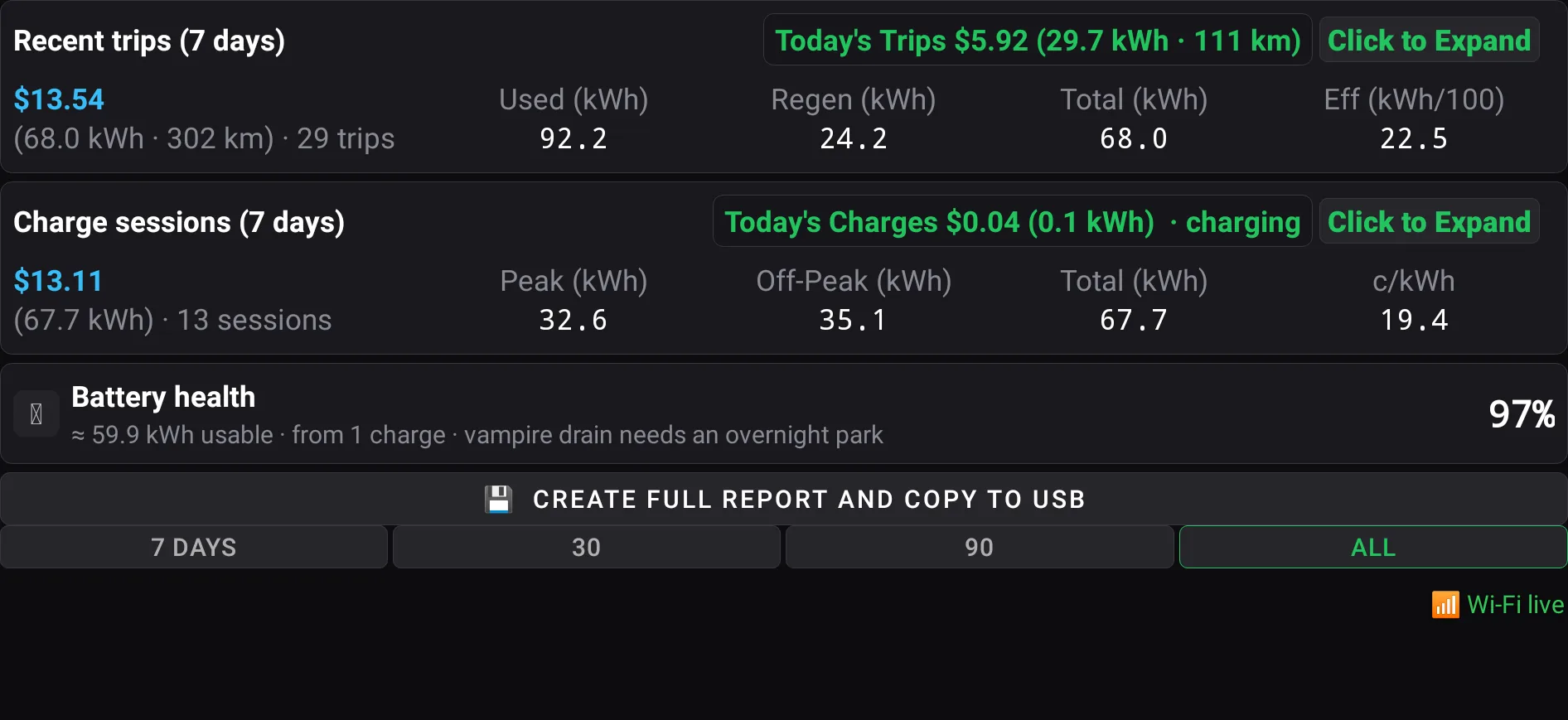
- Battery healthAn estimate of usable capacity against new, worked out from real charges.
- Charge sessionsEvery charge, tagged AC or DC, split into peak and off-peak.
- Copy to USBThe whole report as a file you keep.
- Recent tripsEvery drive of the last 7 days with distance, energy and what it cost.
- Vampire drainWhat the car quietly uses while parked overnight.
- Your tariffCosted against your own rates, entered once and editable.
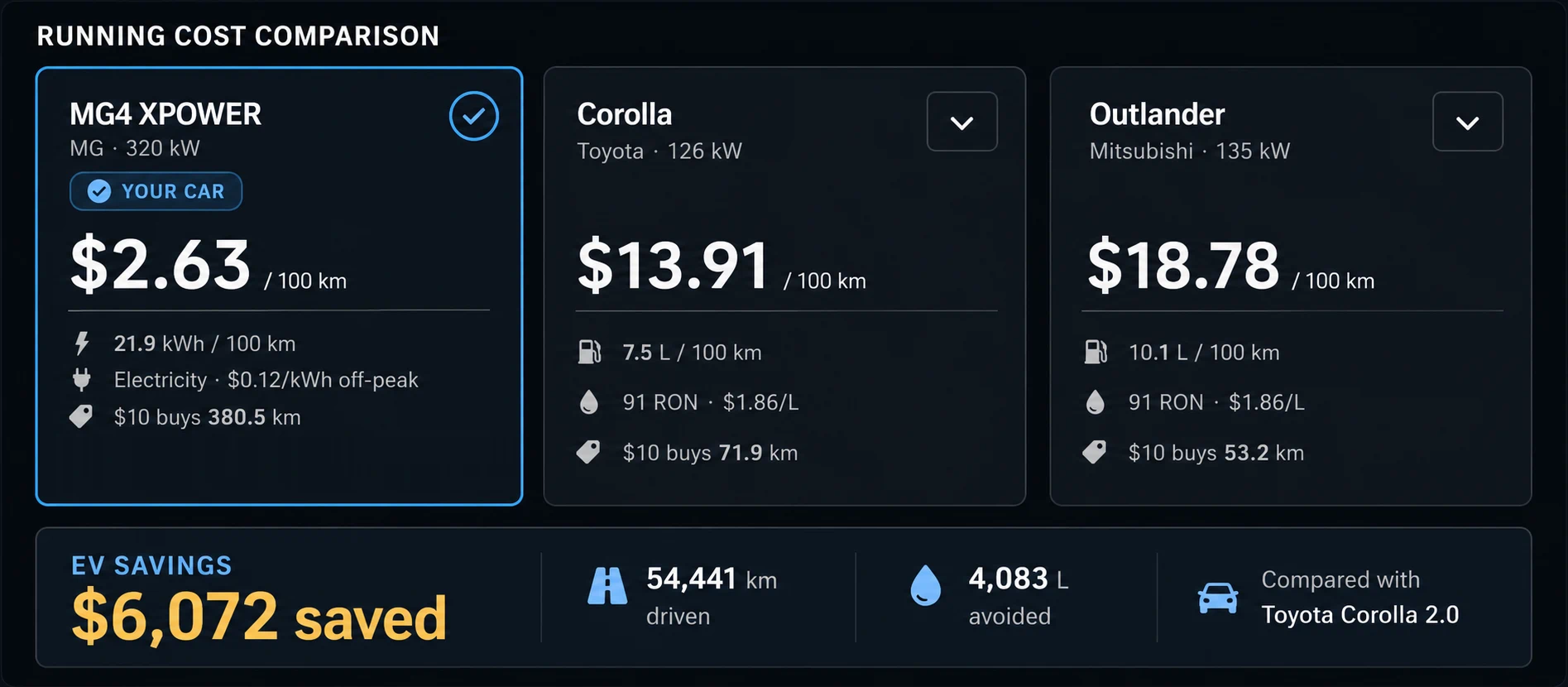
- $10 gets youHow far ten dollars of energy takes you — your MG4 next to the fuel car.
- Cost snapshotShows a quick snapshot for the cost savings being achieved. Many a time a driver may wonder if an EV is in reality cheaper than the ICE cars.
- Lifetime tallyDollars saved, kilometres driven, and litres of fuel never burned.
- Live pump pricesFor your own state, not a hardcoded guess.
- Something like 20 other cars to compare withPick the car you would otherwise be driving — each with its real published consumption.
- Toyota Corolla
- RAV4 Hybrid
- HiLux SR5
- LandCruiser 300
- Mazda 3
- Mazda CX-5
- Hyundai i30
- Kia Sportage
- Mitsubishi Outlander
- Isuzu D-MAX
- Ford Ranger
- Ford Everest
- Ford Mustang GT
- Subaru WRX STI
- VW Golf GTI
- Suzuki Swift
- BMW M3 Competition
- Porsche 911 Carrera
- Audi RS5
All four tyres at a glance
Pressure and temperature at each corner, straight from the sensors already in your wheels, on a car drawn in your colour.
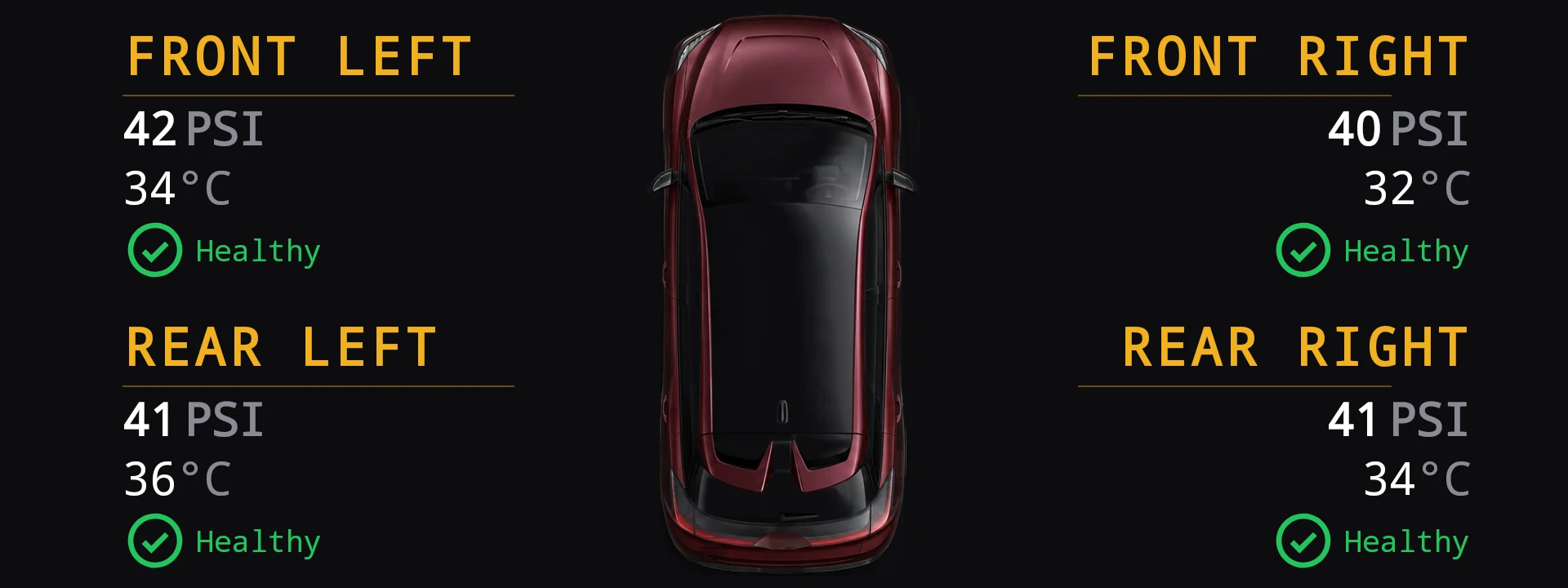
- Easy to Read StatusVery useful if you ever take your car to the track.
- Live TPMSTPMS is the tyre pressure monitoring system already built into your MG4 — the sensors inside the wheels. Zoomy reads all four corners straight from them.
- Pressure psiTyre pressure for each tyre, as the headline figure at its own corner.
- Temperature°C underneath it — the number that tells you a tyre is working harder than its neighbours.
Will the battery get you there
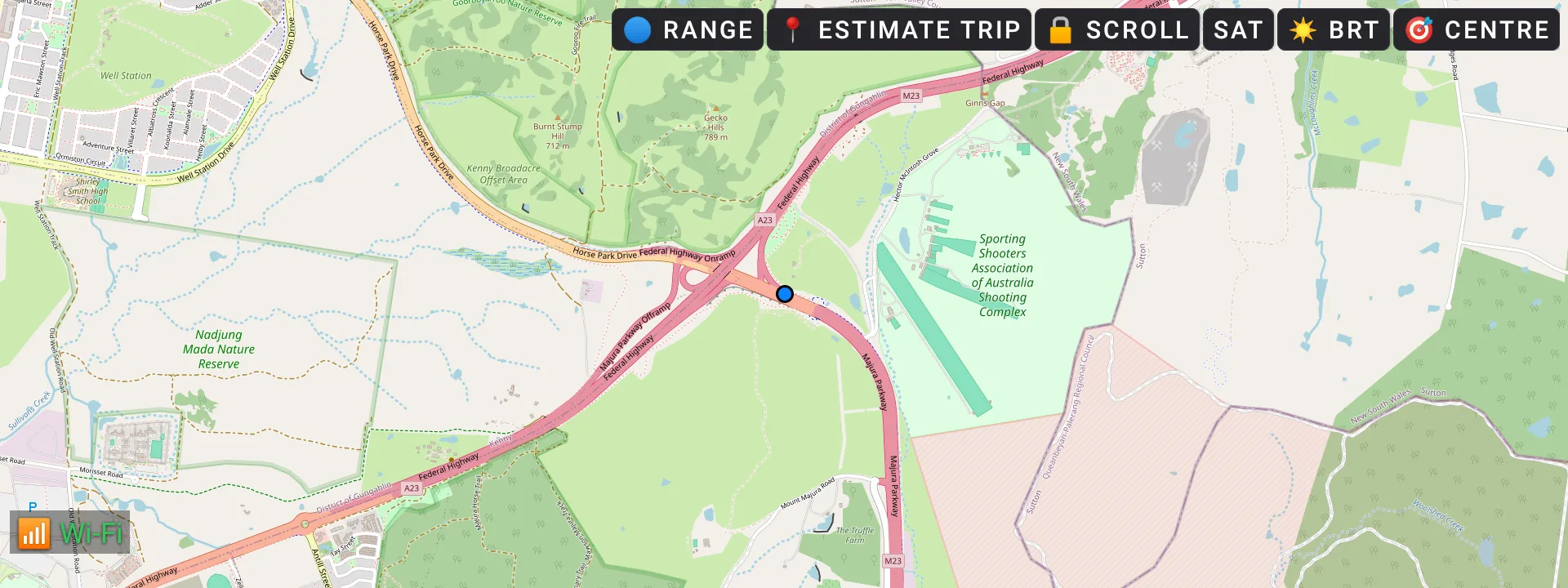
A map that follows the car, and a plain green or red answer on whether the charge you have covers the trip with your 5% reserve intact.
- BrightnessIts own control, for night driving.
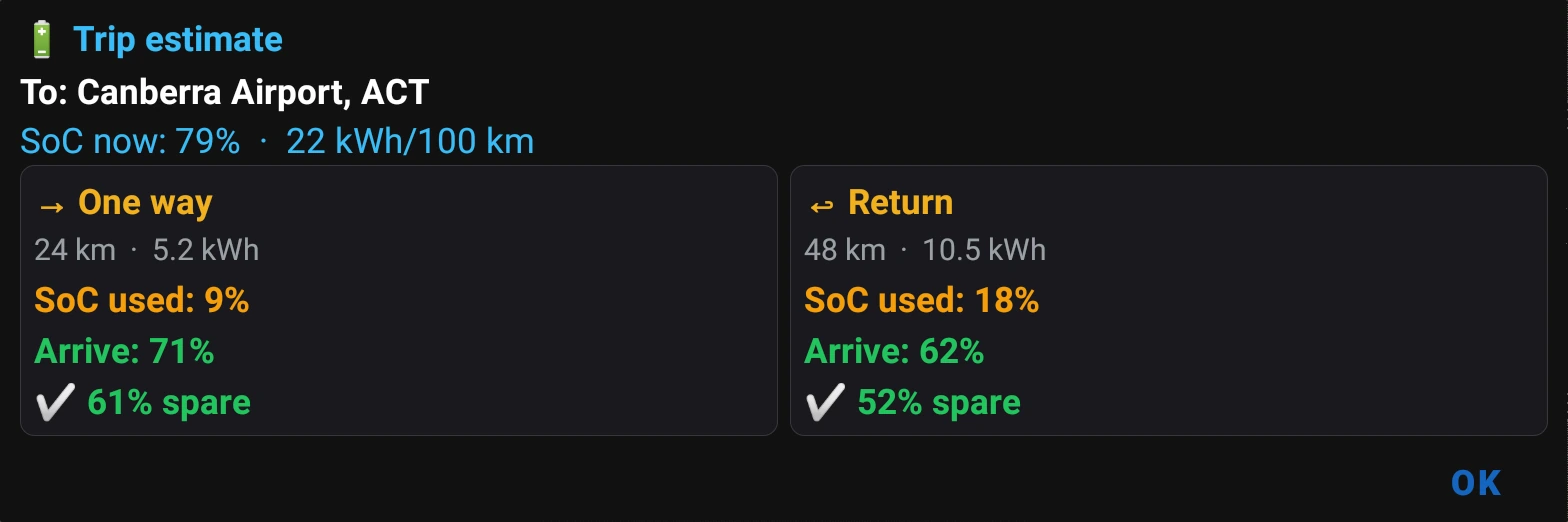
- Estimate TripThe part that answers the real question — pick a saved place or type a destination.
- Follows the carA real map tracking your GPS, not a static picture.
- kWh neededIt looks the address up, gets the real driving distance by road, and tells you how many kWh the trip needs and how much battery that is.
- Range ringsHow far the charge in the car will actually take you, drawn on the map — one ring for getting there, a tighter one for getting back too.
- Return and towingTick either and it accounts for both.
- Scroll lockA stray thumb pans the page, not your position.
- The verdictA plain green or red answer on whether you arrive with your 5% reserve intact.
- Three layersRoad, satellite or topographic — one button cycles all three, as in the clip.
Something to look at
For when the car is parked and the screen would otherwise sit dead — a visualiser, and a lap timer for the days you are at a circuit.
A screen in a car should occasionally be fun. Let the visualisers run while the car is parked.
- Full screenTap to go full screen, tap again to come back.
- Nine modesBars, oscilloscope, burst, tunnel, geiss, spiral, liquid, plasma and stars — every one of them is in this clip, in order.
- PalettesRe-tap the mode you are on to cycle five colour schemes.
- Screen SaverNine animated modes on the 1280×480 dashboard — the old Winamp idea, for when the car is parked and the screen would otherwise sit dead.
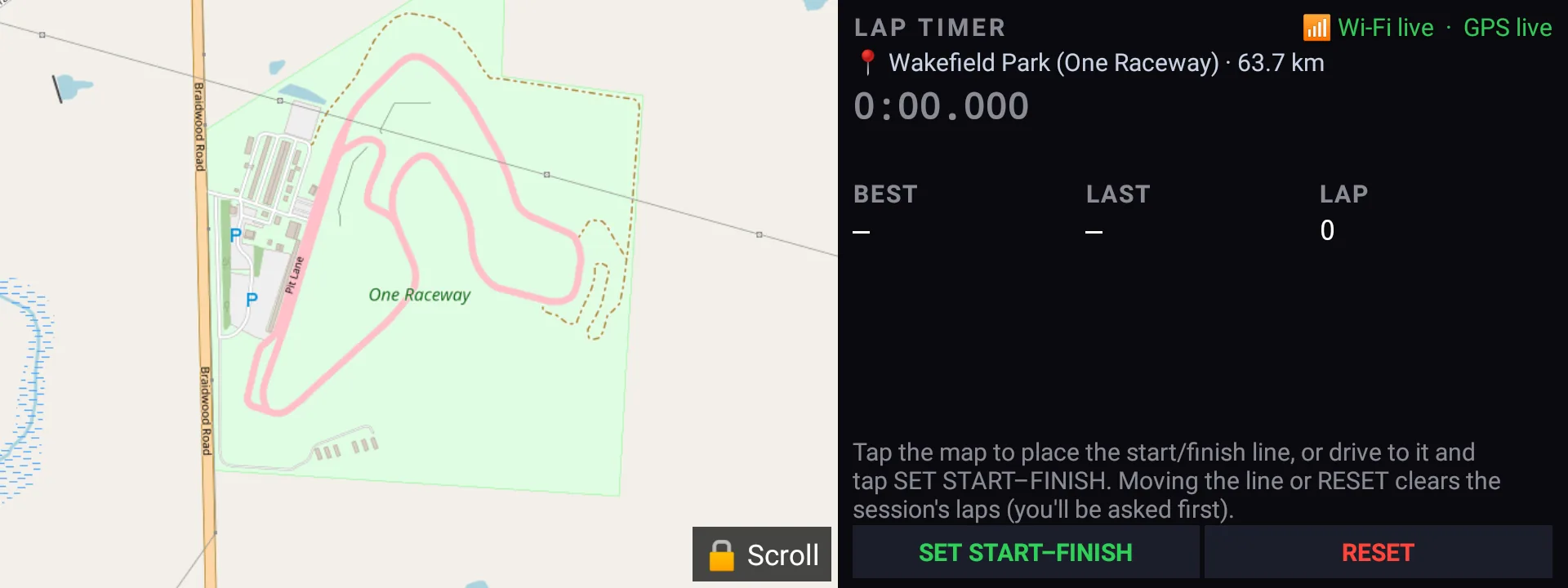
- Best · Last · LapsBest, last, and a lap-by-lap list for the session.
- Current-lap clockBig, with how far ahead or behind your best lap you are beside it — you know mid-lap which way it is going.
- GPS lap timerNo beacon, no transponder, nothing to install at the track.
- Knows the circuitsArrive at a known Australian circuit and it snaps the start–finish line for you.
- Live track mapDraws your line as you go.
- Set start–finishOr place the line yourself, anywhere, by tapping as you sit on it.
Make it yours
Set up the MG4 the way you like it — the cameras, the dimming, your own power rates, the steering-wheel buttons, which pages you keep and what the car does at start-up.
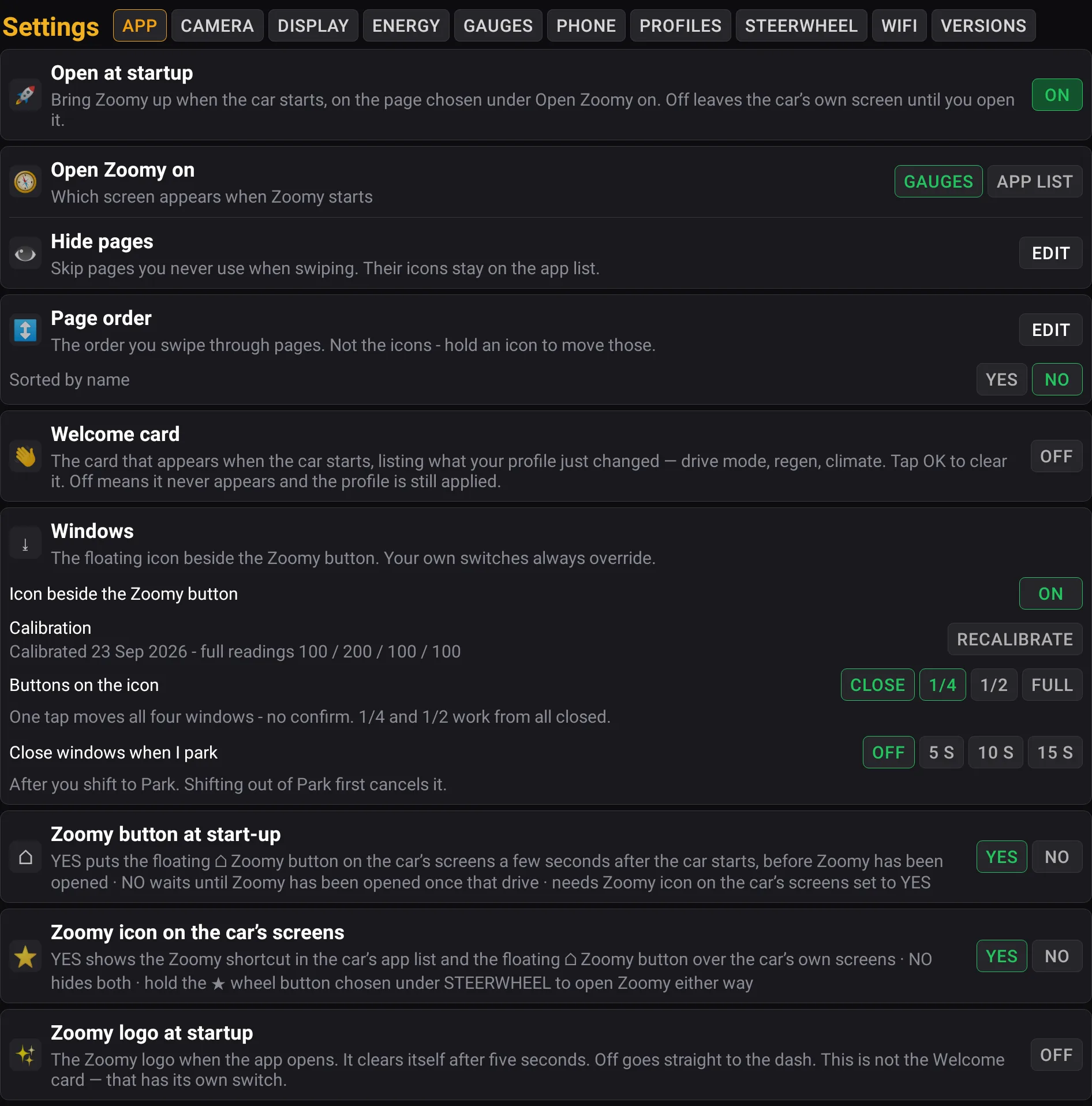
- Ten tabsApp, Camera, Display, Energy, Gauges, Phone, Profiles, Steerwheel, WiFi and Versions — so a setting is where you would look for it rather than somewhere in one long list.
- Auto-profile bandsThe temperature bands, plus which profile is active and why.
- Camera on indicatePop a camera up when you signal — the side you are turning to, or the rear — beside the turn or in the middle of the screen, over every screen or only while Zoomy is open. On a car with a 360 camera, Zoomy can open the car’s own 360 view instead.
- CarPlay and Android AutoFour fixes to try if your adapter or phone does not connect when the car starts, and a button on every Zoomy page straight back to your phone screen.
- Dims itself at duskSet how many minutes before sunset it reaches its night level, how long it fades for, and how far down it goes.
- Text sizeThree tiers, applied across the whole app for ease of reading.
- Hide pages and page orderKeep only the pages you use, in the order you want to swipe through them.
- Steering-wheel ★ buttonsPick which ★ opens Zoomy, and what holding the other one does: Driver Profiles, a page you choose, your next profile, or a camera in the middle of the screen.
- Wi-Fi from inside ZoomyJoin a network, and see at a glance whether the internet is answering.
- Your tariffPeak and off-peak windows and rates, taken straight off your own energy bills. This is what makes every dollar figure in the app yours rather than a national average.
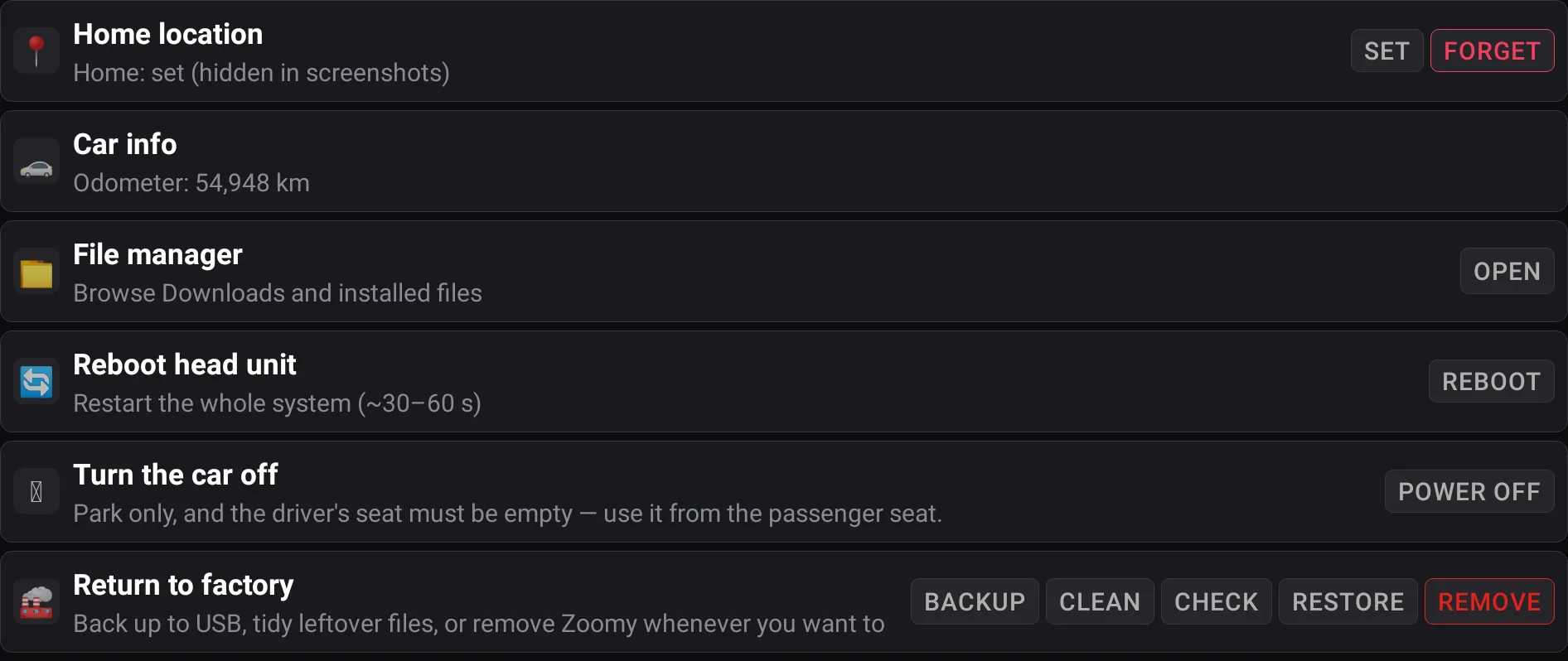
- Return to factoryBack up everything to a USB stick and remove Zoomy, whenever you want to. The backup is verified by reading it back before anything is deleted — it is the only copy that survives the uninstall.
- Hide the Zoomy icon entirelyOne switch takes the app-list tile and the floating button off the car’s own screens. Hold the left wheel button to bring it back.
- Your averaging windowChoose whether the kWh/100km figure looks back 100, 250, 500 or 1000 km.
- Odometer and a file managerRead the car’s distance, and browse what is actually on the head unit.
- Reboot the head unitRestart the whole system without hunting through the factory menus.
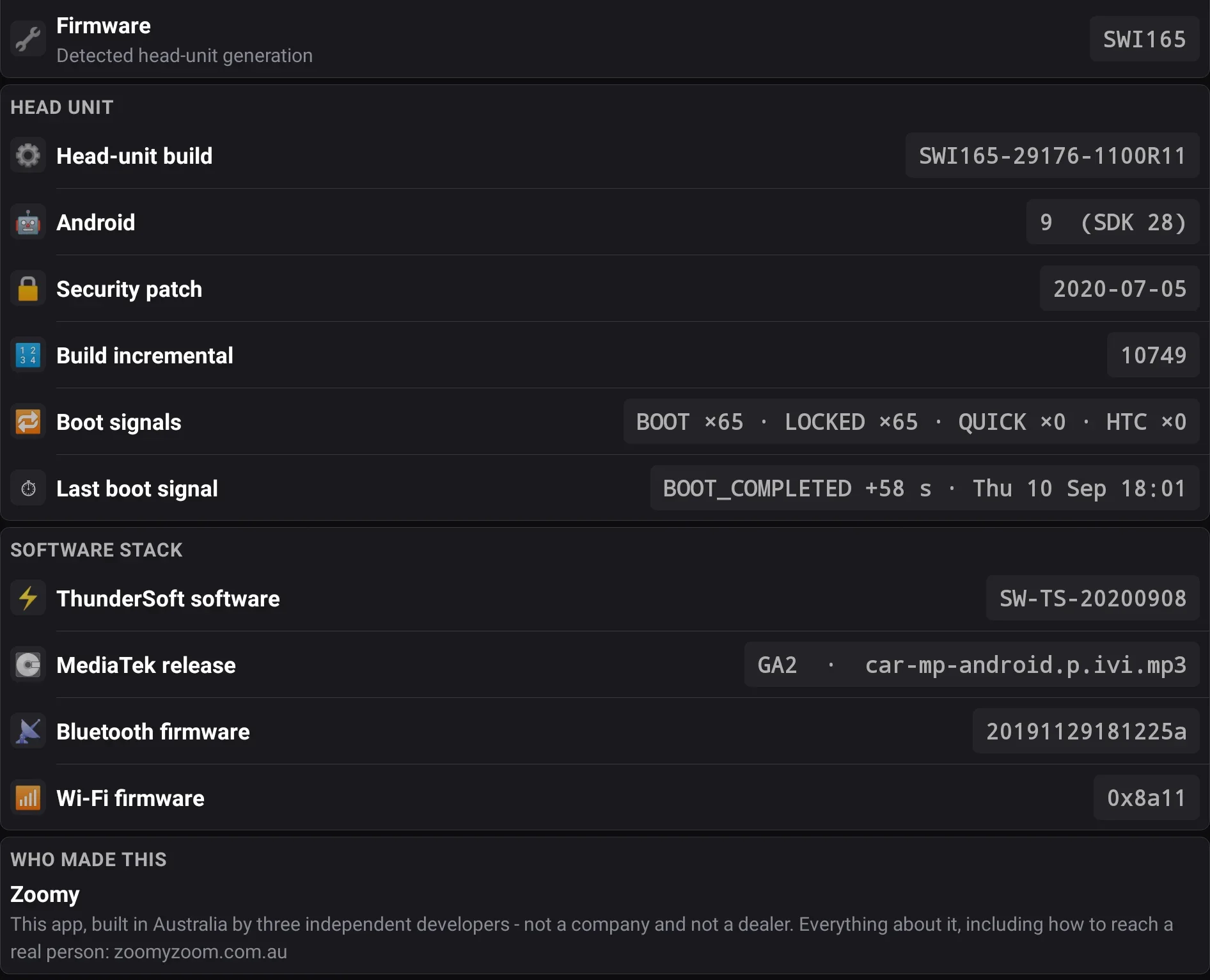
- Build detailDown to the firmware identifiers.
- What is runningThe app version, the car’s firmware, and the Android build.
- About this screenshotThe build number in it is simply whatever was running on the car the day the shot was taken.