ZoomyA more useful and enjoyable screen for your MG4
CART · 0
Tips and tricks.
The taps and holds that make Zoomy quicker to use. Most of them aren’t
labelled on the screen, so here they all are — each with a picture showing where your
finger goes.
The icons page
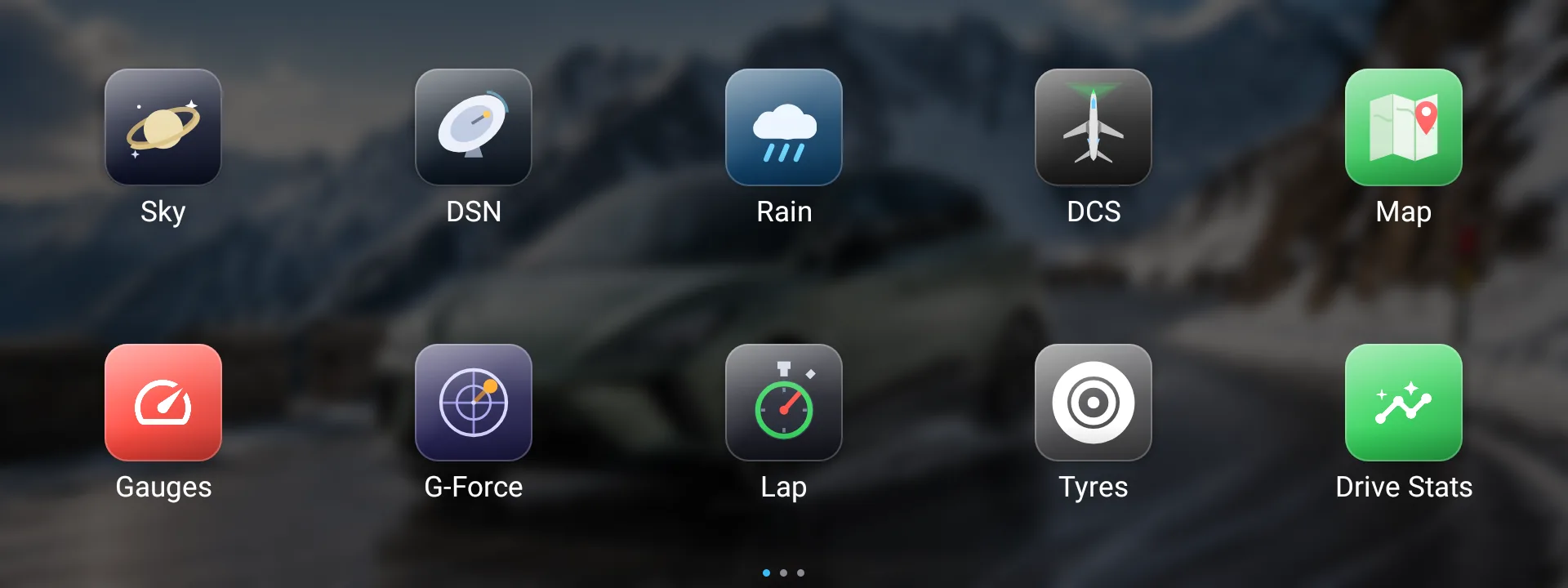
The first screen you see, and the one every page comes back to.
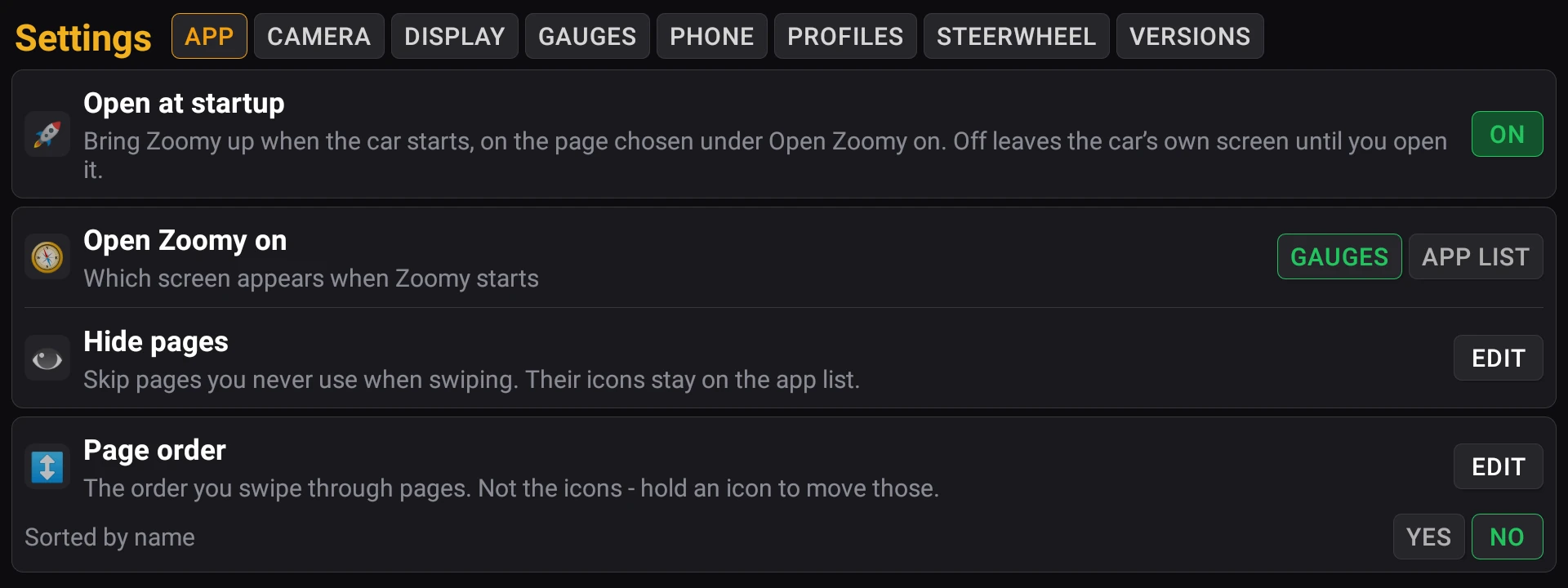
Hold 1 sMove your iconsHold any icon for about a second until the icons start to wiggle, then drag it where you want it. A few seconds after your last move they stop wiggling on their own.Hide pagesPage orderHide pages, and choose the swipe orderSettings → APP → Hide pages → Edit: tap the pages you never use (lit means hidden), then Save. Their icons stay on the icons page, so they still open with a tap. Page order, just below, sets the order you swipe through - moving icons doesn’t change it.
Getting around
Zoomy has no back button to hunt for. These are the quick ways about.
TapTapBack to the icons from any pageTap the top-left or the bottom-left corner of any Zoomy page and you’re back at the icons.← Swipe →Swipe from page to pageOnce you’re on a page, swipe left or right to go straight to the next one - no need to go back to the icons first. Keep going past the last page and you wrap round to the first.
The ★ buttons on the steering wheel
Two buttons you already have, and they do more than you’d think.
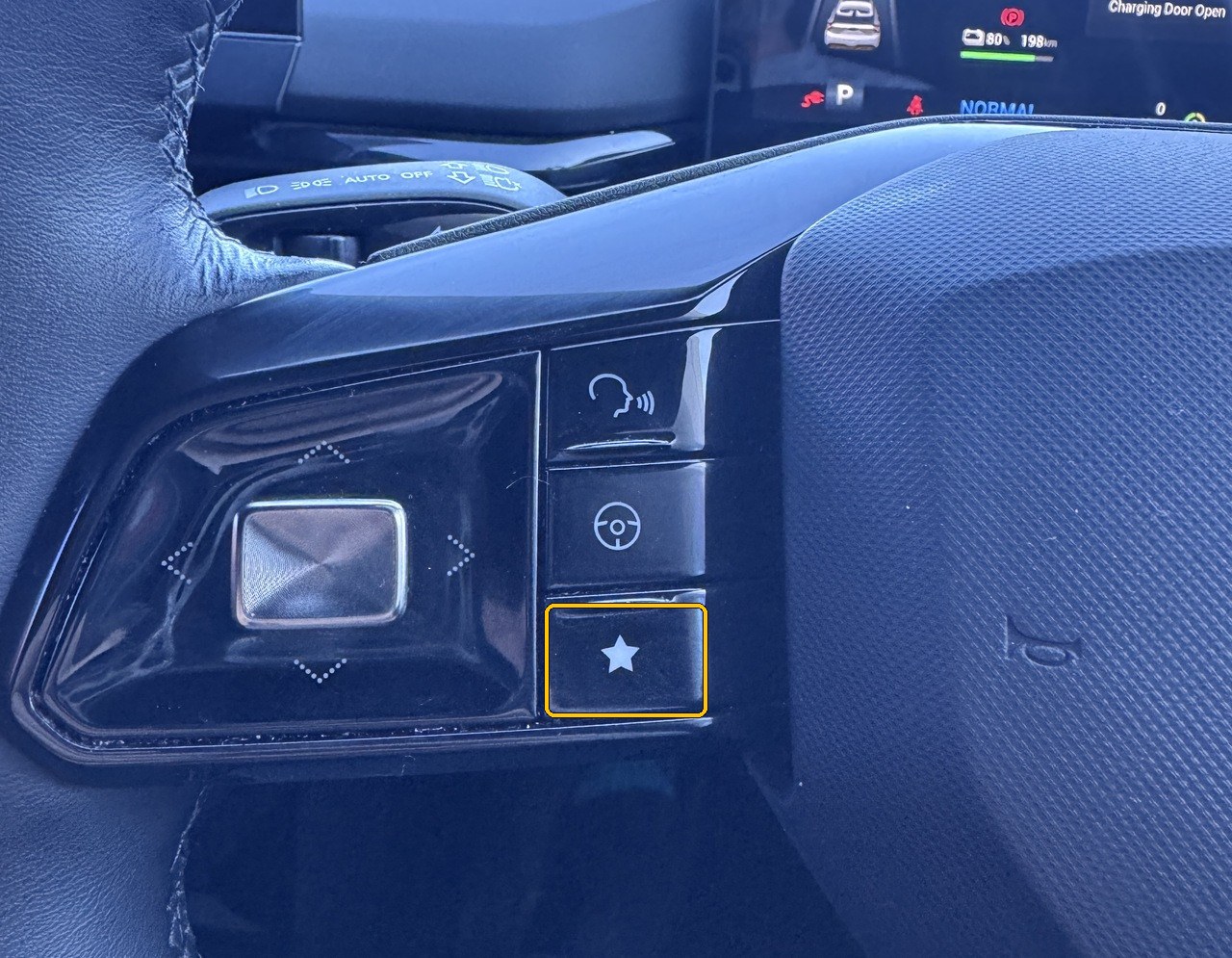
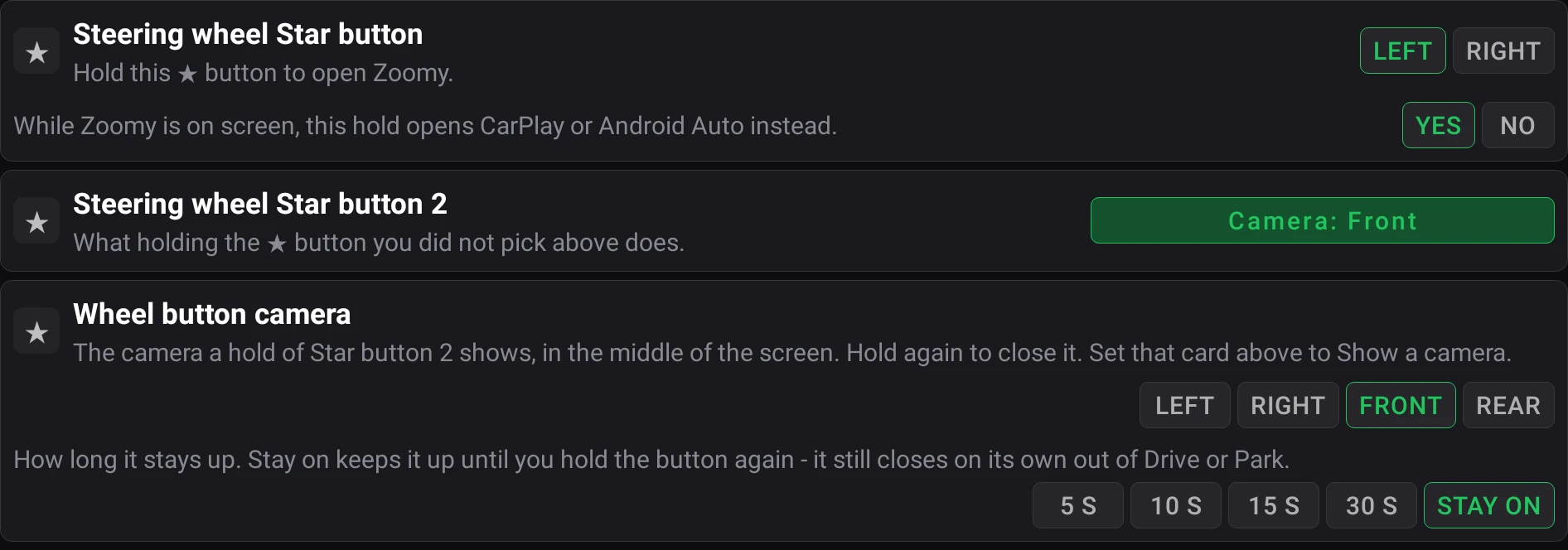
HoldOpen Zoomy from any screenHold the ★ button on the left of the steering wheel and Zoomy opens, whatever is on the screen.Tap YESFrom Zoomy to your phone in one holdWhen in Zoomy, long press the same button to take you to CarPlay or Android Auto.Which ★Choose which ★ opens ZoomyZoomy opens from the left ★ to start with. Rather use the right one? In Settings → STEERWHEEL, tap RIGHT on the Steering wheel Star button card. The two ★ swap jobs, so the left one then opens your Driver Profiles, or whatever you’ve set the other ★ to do.
★Hold
Make the other ★ yoursThe other ★ button means the one that doesn’t open Zoomy. This one instead opens your Driver Profiles (default setting). However in Settings → STEERWHEEL you can make it open any page you pick, apply your next saved profile, or show a camera (at any speed).CameraHow longA quick look with the cameraSet the other ★ to show a camera, and holding it puts that camera in the middle of the screen for 15 seconds - or 5, 10 or 30, or until you hold it again. It works in Drive and in Park.
The Zoomy button over the car’s own screens
When you leave Zoomy for the car’s own screens, a small ⌂ Zoomy button floats on top.
⌂ ZoomyTap
One tap back to ZoomyTap the floating ⌂ Zoomy button and you’re straight back in Zoomy.
⌂ ZoomyDrag
Put it where you likeDrag the Zoomy button anywhere on the screen. The CarPlay or Android Auto button sits in the same spot, so moving one moves both.
⌂ ZoomyHold 2 s
Hide it for this driveHold the Zoomy button (or the CarPlay one) still for 2 seconds and it goes away until you next start the car. The window buttons go with it.
CarPlayTap
Your phone, one tap awayTurn on the CarPlay / Android Auto button in Settings → PHONE and it floats over every Zoomy page - one tap and you’re on your phone’s screen.
⌂ Zoomy⤓ ¼⤓ ½⤓ FullTap
Windows from a buttonTurn on the window buttons in Settings → APP → Windows and they sit beside the Zoomy button. Zoomy walks you through a short calibration first; after that one tap closes the windows, or opens them a quarter, half or all the way.
Gauges
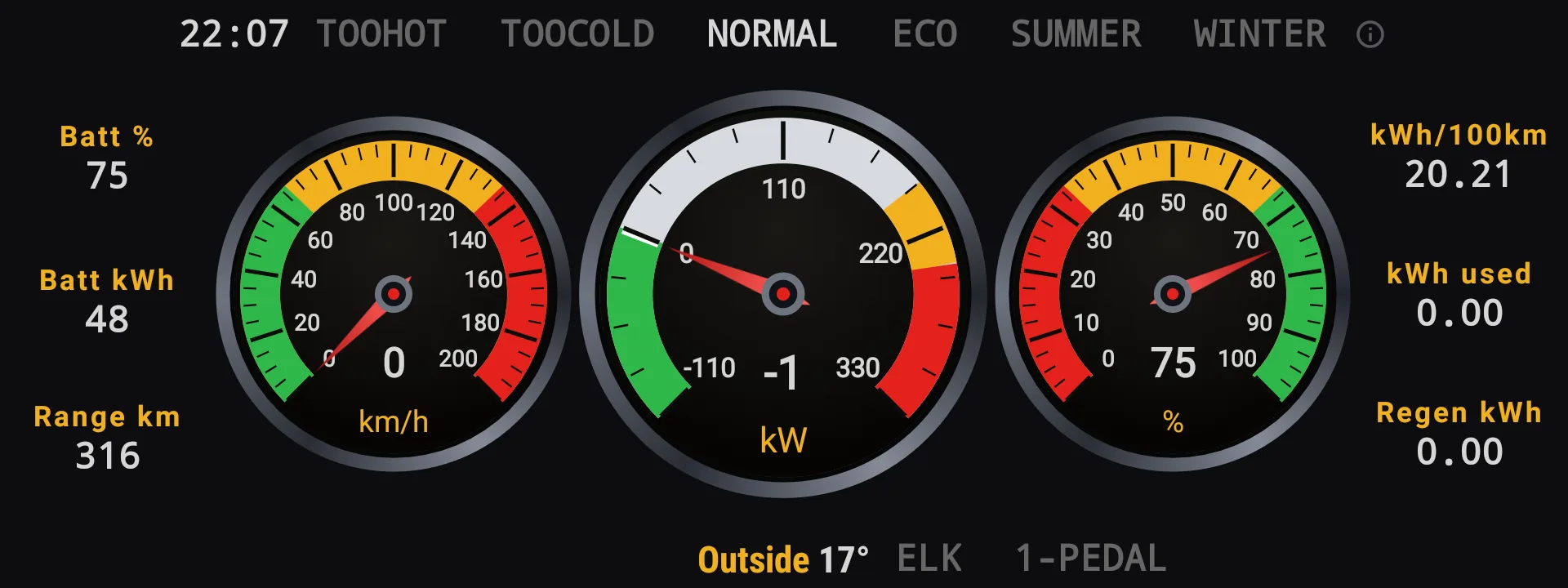
Almost everything on Gauges changes when you tap it.
TapChange the left dialTap the left dial to switch it between power, amps and speed.ColoursSpeed · % · kWColour your dialsTap the top half of the middle dial to change the colours of all three dials - there are 23 looks. Tap the bottom half to switch it between speed, battery % and power.TapChange the right dialTap the right dial to step through energy used, volts, amps, power and battery %.TapAverage over the distance you wantTap your kWh/100km figure to change how far back it averages - anywhere from 5 km up to 1000 km.Tap a nameApply a profile from GaugesTap a profile name along the top to apply it. Tap it again to step to your next profile of the same kind.TapTrip time and distance on GaugesTap Batt kWh on the left of Gauges to see how long this trip has been going. Tap again for how far it has gone, and once more to get Batt kWh back.TapYour 12 V battery on GaugesIf you use an OBD dongle with Zoomy’s OBD page, tap Batt % on the left of Gauges while it’s connected to see your 12 V battery’s voltage. Tap again for Batt % back. With no dongle connected, the tap does nothing.Button 1Button 2Your own two buttonsChoose two quick buttons for the bottom of Gauges in Settings → GAUGES → Gauges Screen - shortcuts: lane keeping (ELK), one-pedal driving (1-PEDAL) and more. Most switch a setting on or off with a tap - lit means on. PROFILE steps to your next saved profile.TapThe little ⓘOn Gauges and Trip there’s a small ⓘ at the top of the page. Tap it for a list of everything on that page you can tap.
Trip
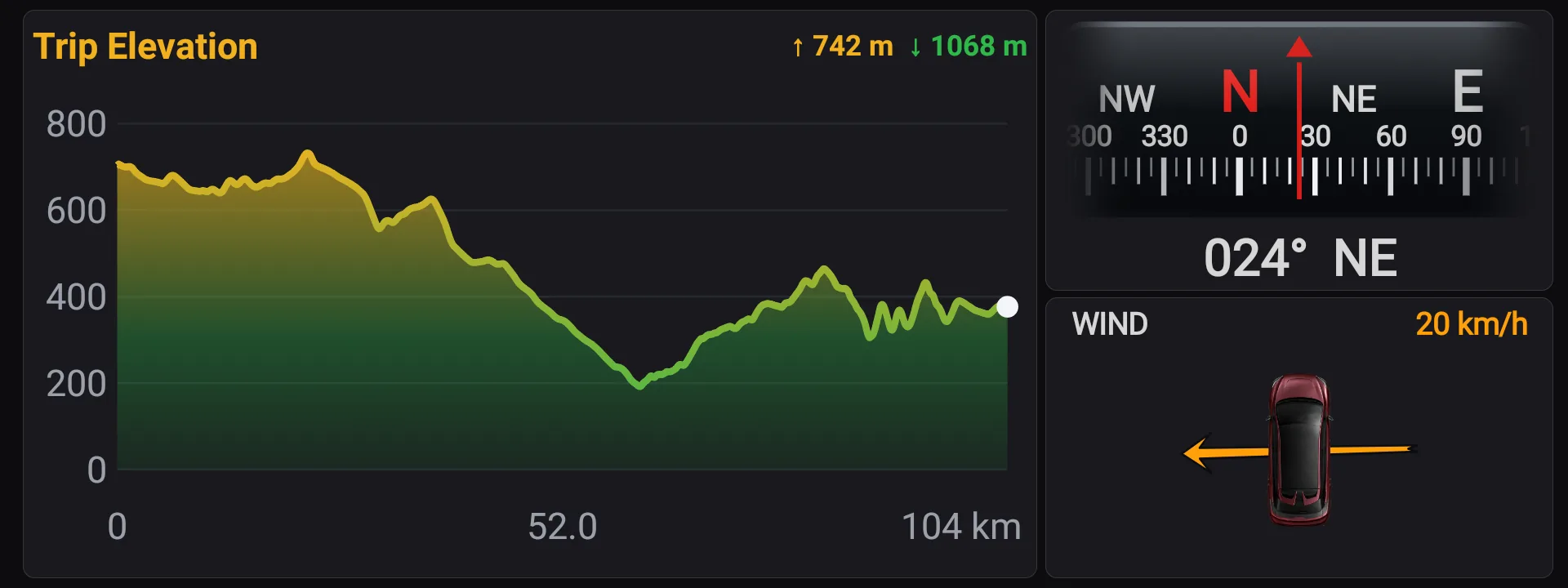
All three boxes on the Trip page turn into something else when you tap them.
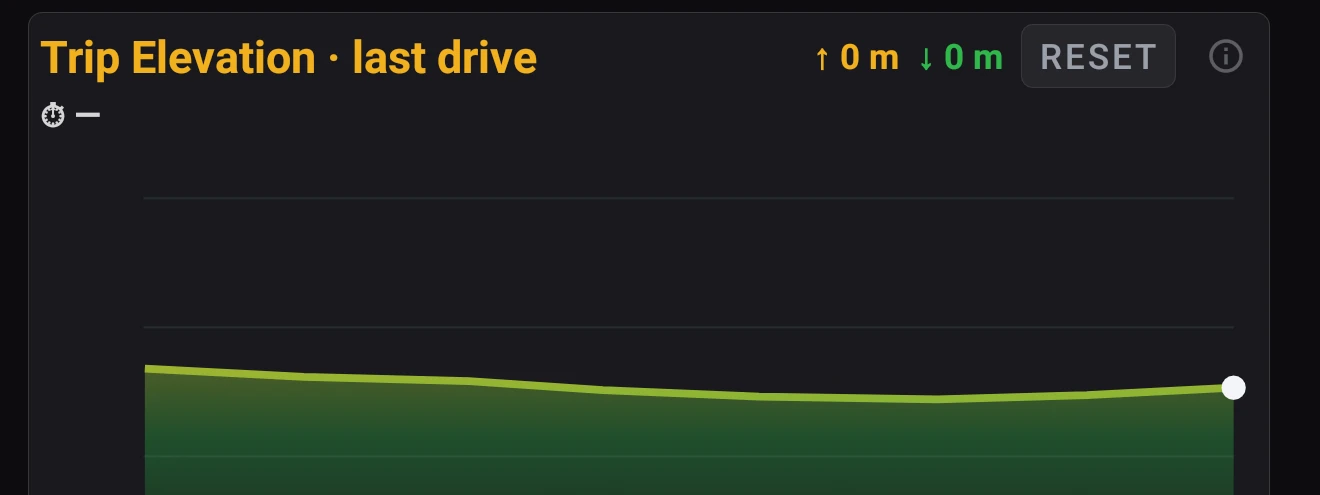
TapMake the climb fill the screenTap the elevation graph to make it full width. Tap it again to bring the compass and the wind back.TapChange the compassTap the compass to change how it looks - a moving tape with the heading, the tape on its own, or just the heading in big numbers.TapFlip the wind boxTap the wind box to turn it over and see the energy you’ve used - and got back - on this drive.
Charging and Drive Stats
What your charging and driving cost, your way.
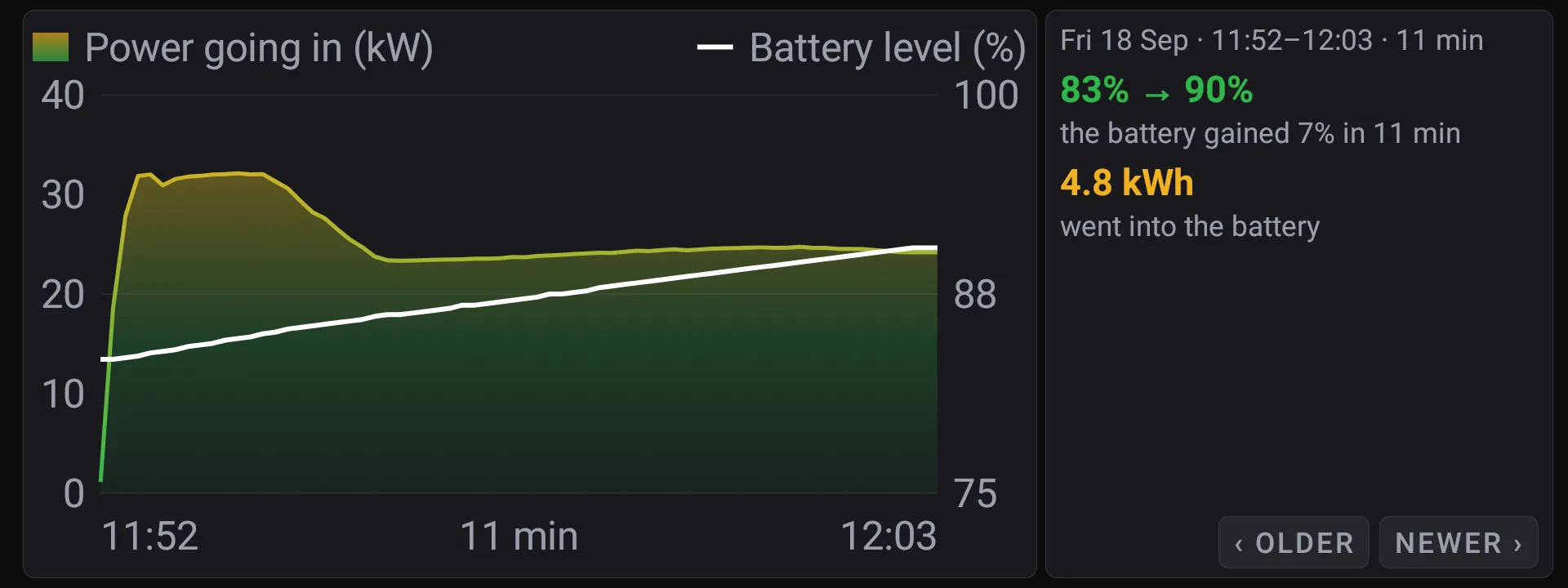
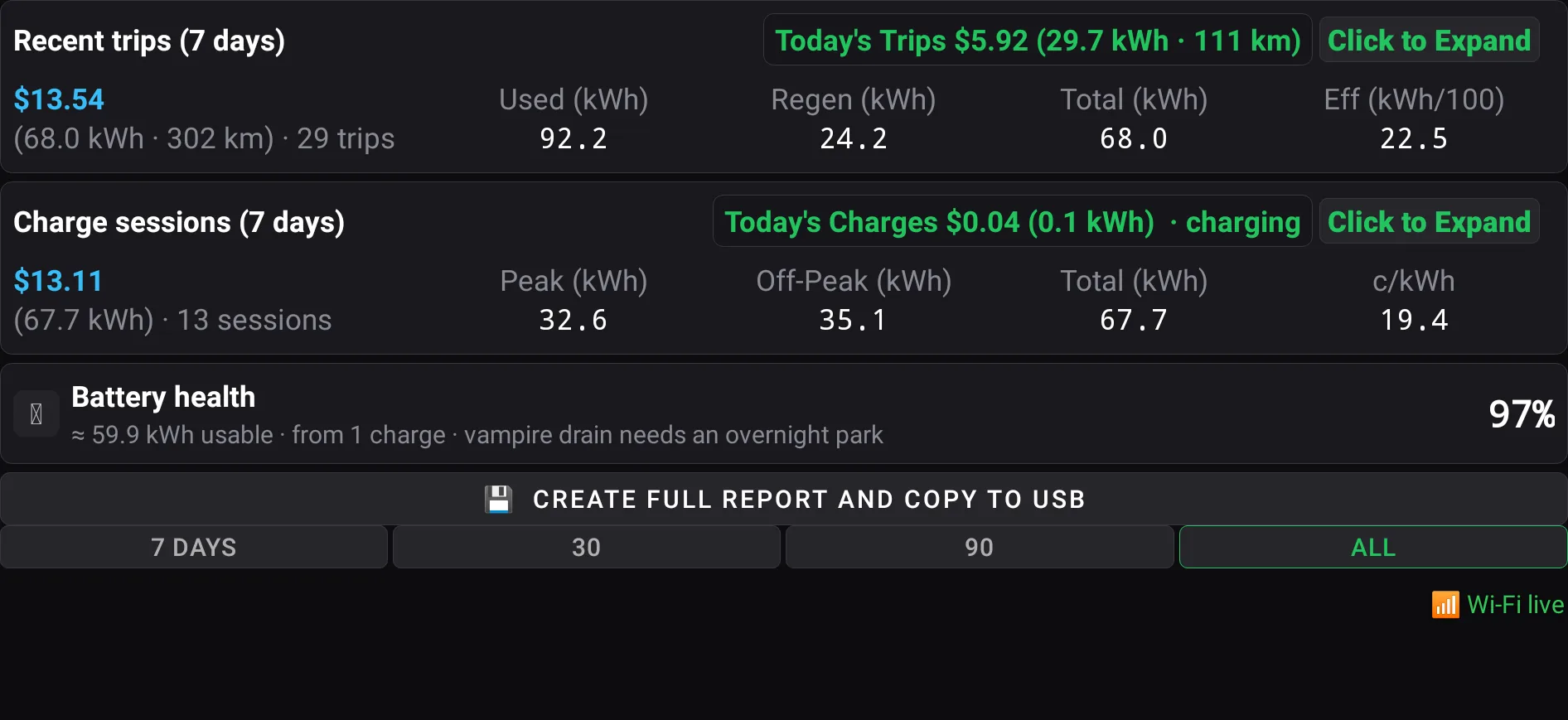
TapChange the charging coloursTap the charging graph to change its colours. There are 11 looks - some filled in, some just a line.TapSee where you droveOn Drive Stats, open the trip list with Click to Expand, then tap any trip to see the route you drove on a map.TapFix what a charge costPaid a public charger? Open the charge list with Click to Expand, tap that charge, and type in what it really cost.
Map and Lap
The map is locked so a swipe changes page - here is how to use it anyway.
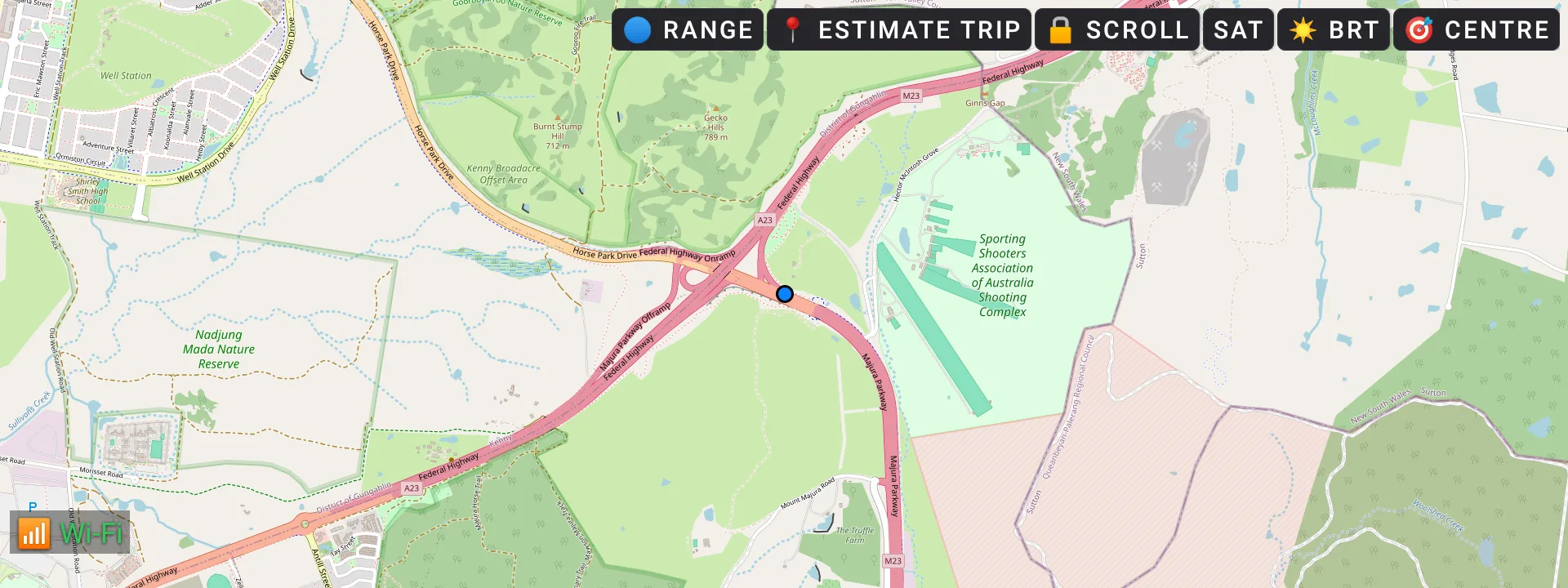
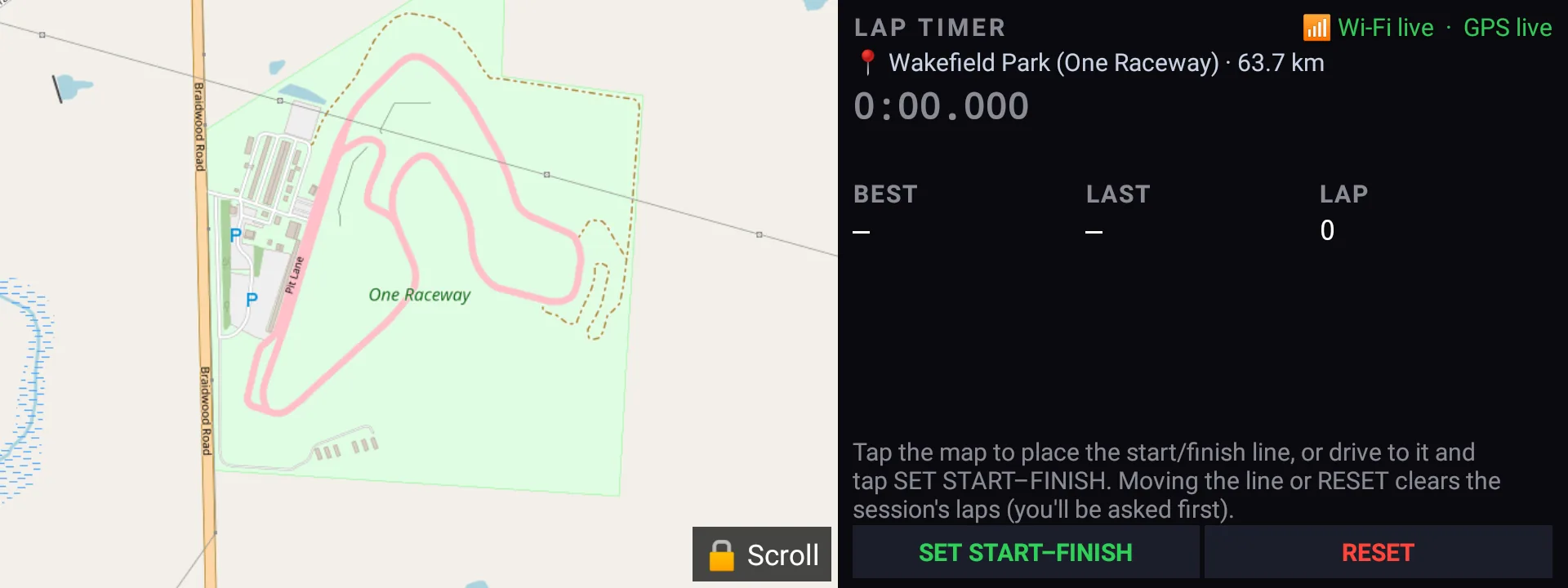
TapMove the mapThe map stays put so you can swipe between pages. Tap 🔒 Scroll to move it and pinch to zoom.TapSee how far you can goTap 🔵 Range to show how far the battery will take you one way, tap again for there and back, and again to turn it off.Hold a placeSaved places and towingIn 📍 Estimate Trip, hold a saved place to delete it. Towing a trailer or caravan? Tap Towing at the top and every estimate allows for it.TapSet your start lineOn Lap, tap the map where the start/finish line should go.
More pages
Screen Saver and DCS start out hidden on a new install - unhide them in Settings → APP → Hide pages.
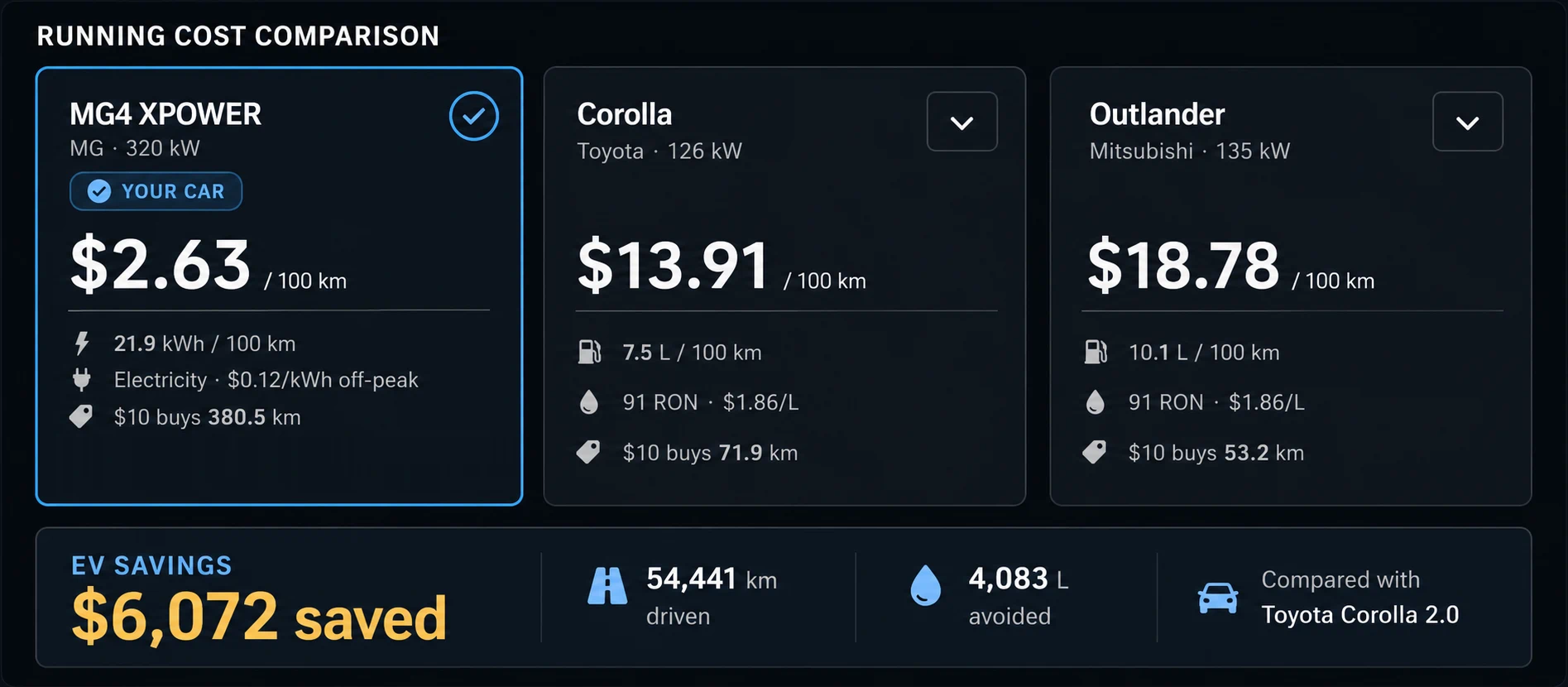
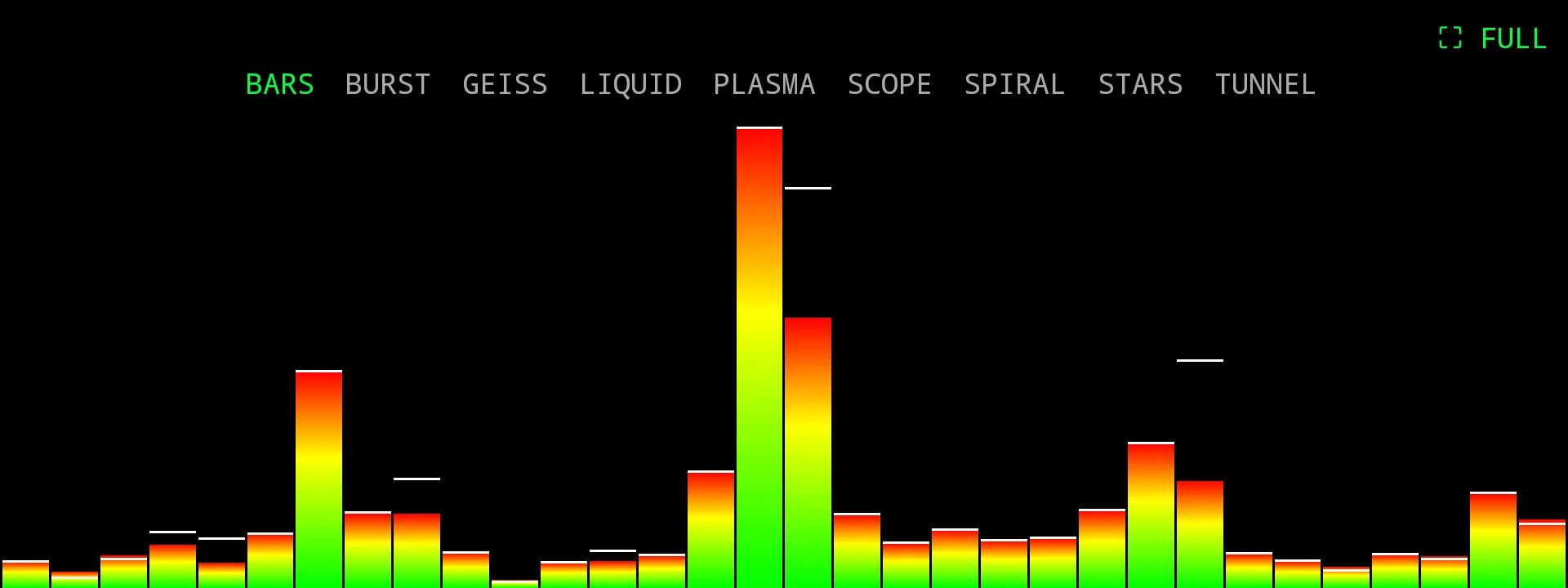
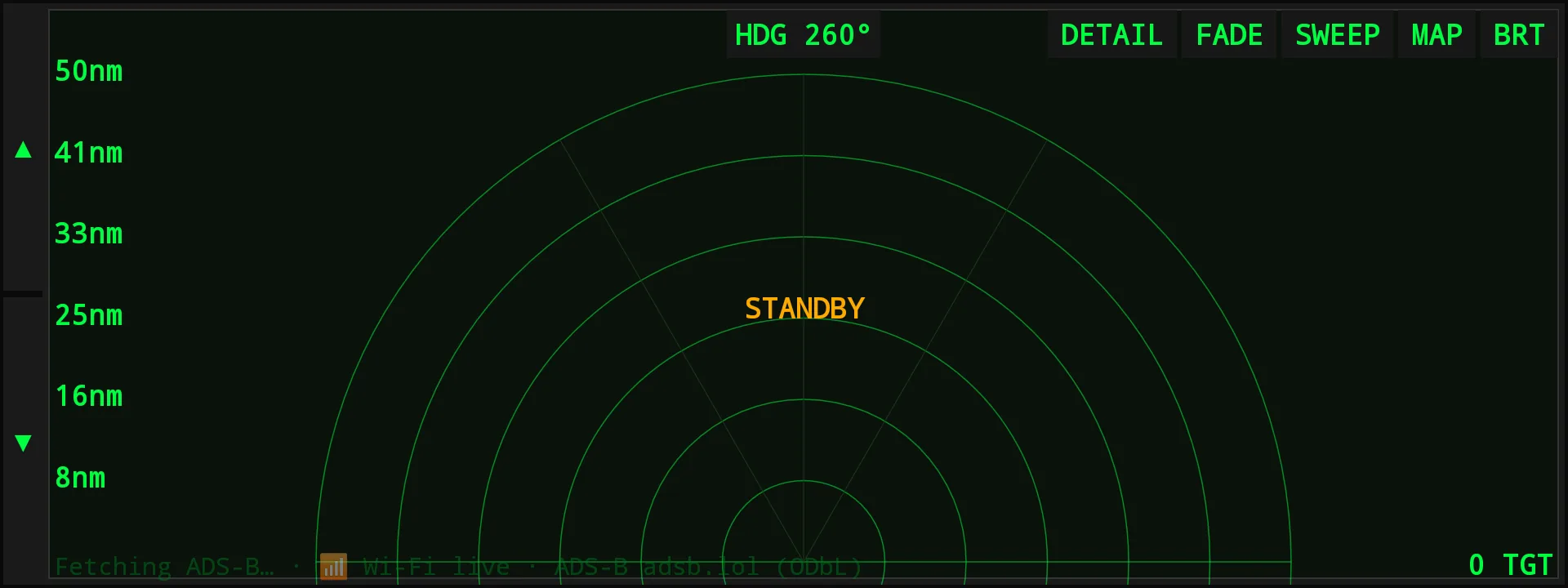
TapCompare with your old carOn EV vs ICE, tap any car box to pick a different car to compare against.Tap againScreen Saver ColoursOn Screen Saver, tap the style you’re already on for a new set of colours. ⛶ FULL fills the screen - tap anywhere to get the buttons back.Slide up / downZoom the aircraft scope and lock onOn DCS, slide up or down on the scope to change how far it looks. Tap a plane to lock on and see where it’s going; tap it again to let go.
Looking after Zoomy
A few things worth setting up once.
Check & download updateTap
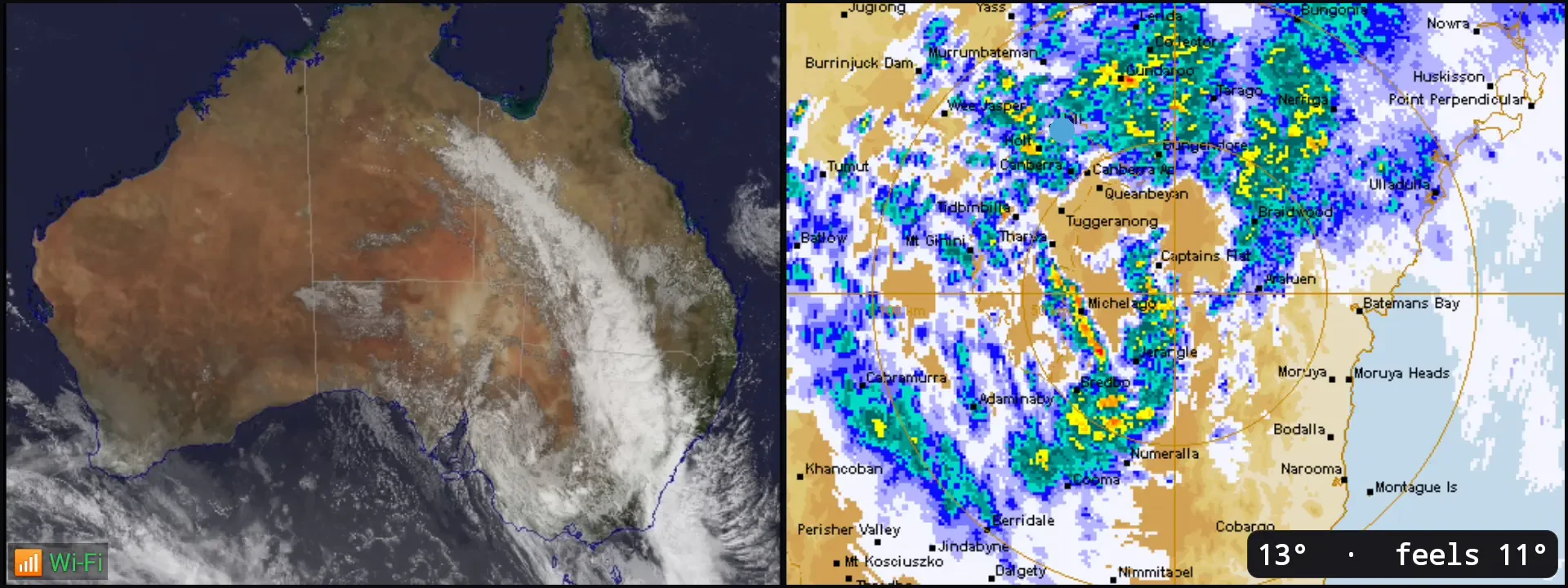
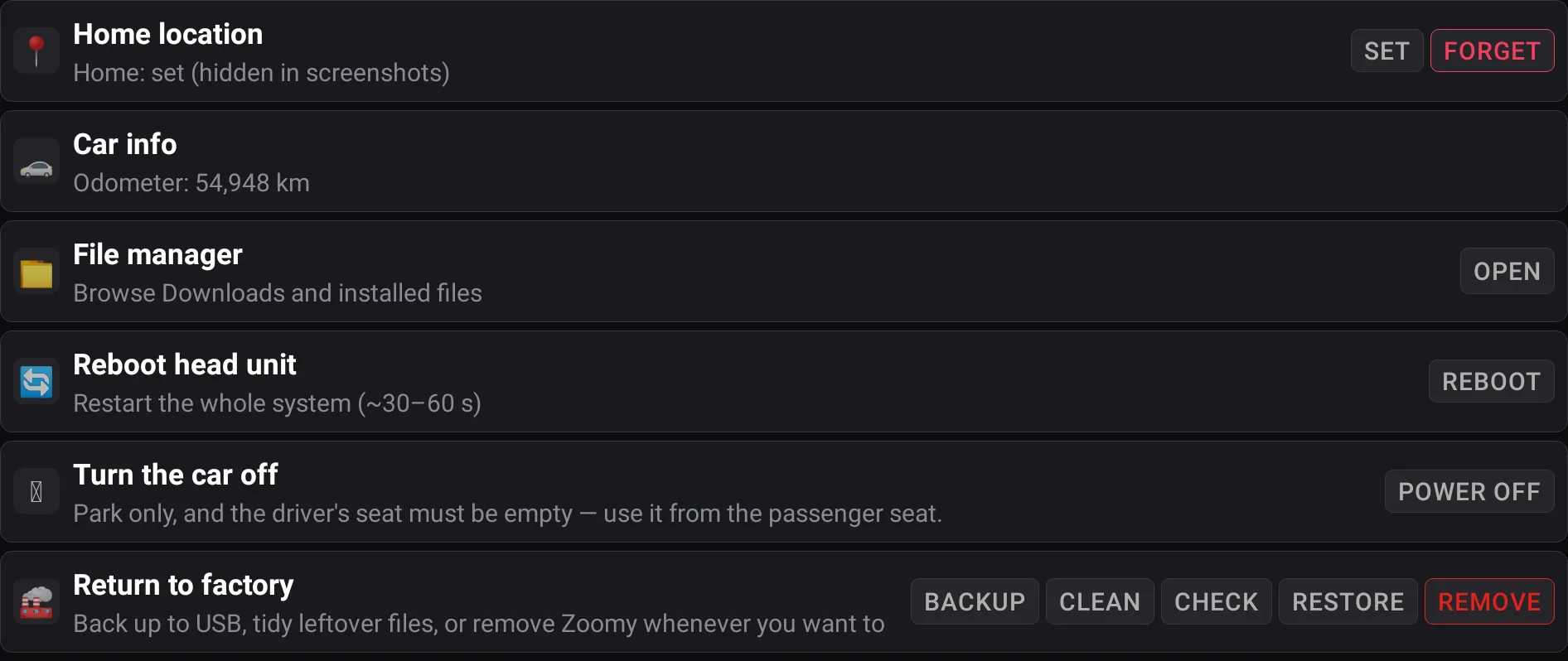
Update over Wi-FiKeep the Zoomy file’s name exactly as it downloaded - its last 10 characters are your licence code. Then, on Wi-Fi, open Settings → VERSIONS and tap Check & download update.Live radar on the roadZoomy only uses Wi-Fi. Turn on your phone’s hotspot for live rain radar and maps on the road.SETKnow what charging costsSet your home (Functions → Home location → SET) and your power prices (Settings → ENERGY → Power tariff rates), and Zoomy works out what each home charge and drive costs.BACKUPBack up now and thenPlug in a USB stick and tap BACKUP on the Functions page. Your settings, profiles, trips and charges are copied to it - wait until Zoomy says the stick is safe to remove.
📶 Home Wi-FisavedHold
Forget an old Wi-Fi networkIn Settings → WIFI, under Wi-Fi networks, hold a saved network to forget it.