
Install Zoomy on your MG4
Zoomy installs on the factory MG4 screen from a USB drive.
Already have Zoomy on the car? You do not need any of the steps below to update it. On Wi-Fi, open Settings → VERSIONS and tap Check & download update. Or copy the new file to a USB drive, then in Zoomy open Functions → File manager, open the USB drive and tap the file. The steps below are for a first install, when there is no Zoomy to open yet.
The car’s infotainment system runs Android underneath, so this is very similar to installing an app onto Android.
You do not unlock the car, replace its software or change its firmware. Follow the install steps below with the car safely parked.
Before you start
- A MAC or PC with your Zoomy download on it.
- A USB drive formatted as FAT32.
- The car parked — the car on, the handbrake applied. Do NOT do this whilst driving.
The install steps
Copy Zoomy to the USB drive
Your download is the app — one file, named Zoomy-customer-*.apk. There is nothing to unzip and nothing to rename. Copy it onto the FAT32 USB drive. Eject the drive safely once the copy has finished.
Need to format your USB drive?FAT32, on Windows or a Mac.- Windows — in File Explorer, right-click the drive, choose Format, set File system to FAT32 and click Start. Windows only offers FAT32 on drives of 32 GB or less, which is why a small stick is the easy choice.
- Mac — open Disk Utility, select the drive, click Erase, set Format to MS-DOS (FAT) and click Erase.
Connect the drive to the car
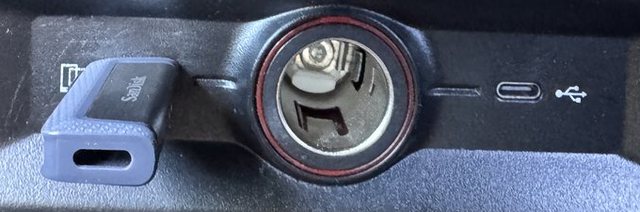
Plug it into the MG4’s MEDIA USB port, in the centre console. It is the rectangular USB-A socket — the small oval USB-C beside it is for charging only and the car will not read a drive from it.
Open Android settings and install Zoomy
The MG4’s normal menus have no install option, so you reach the screen’s Android settings first.
Start on the car’s home screen.
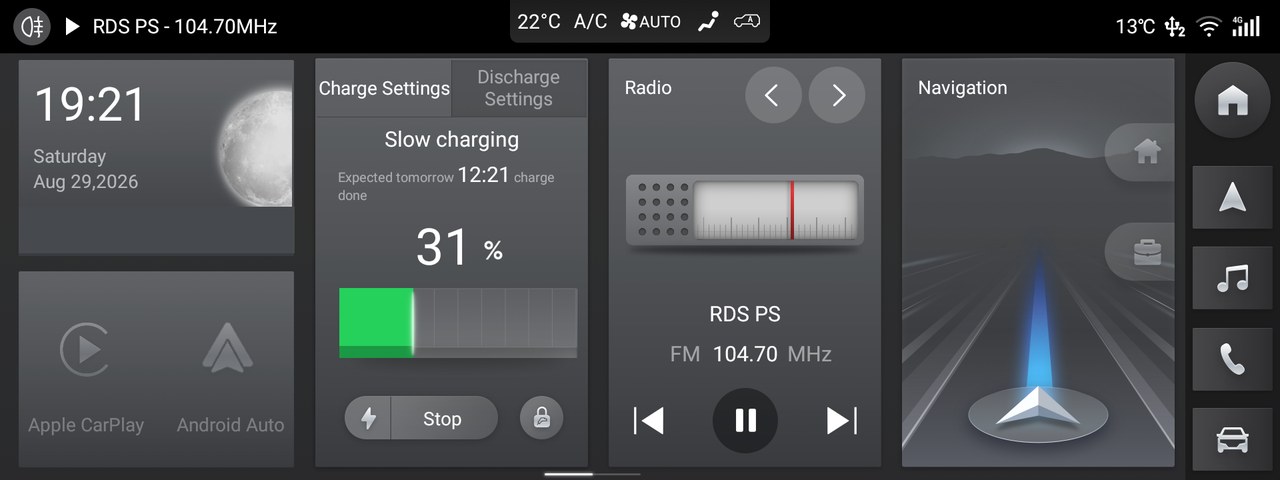
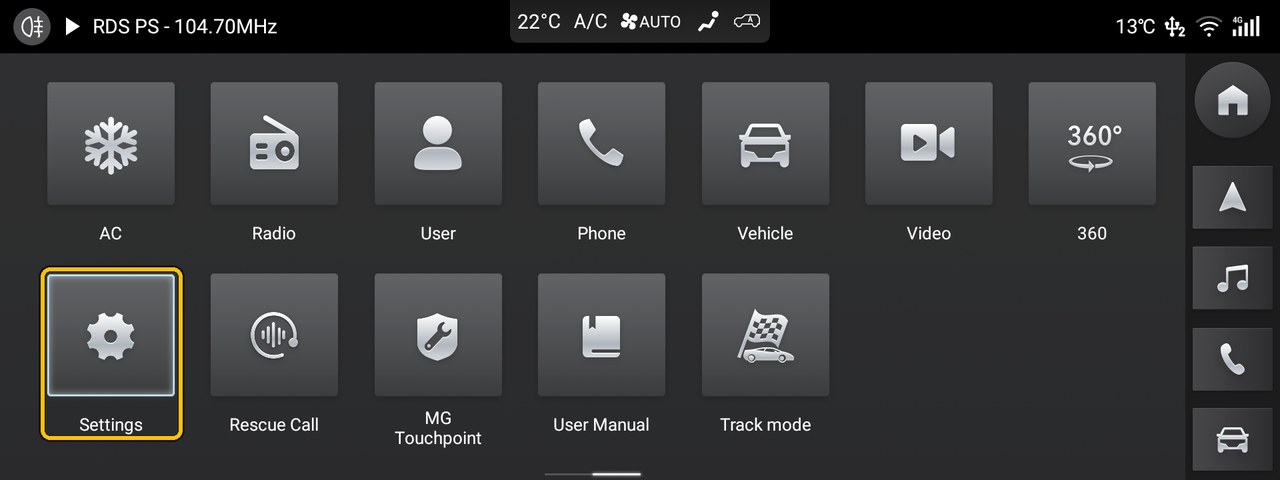
Open the app grid and tap Settings.
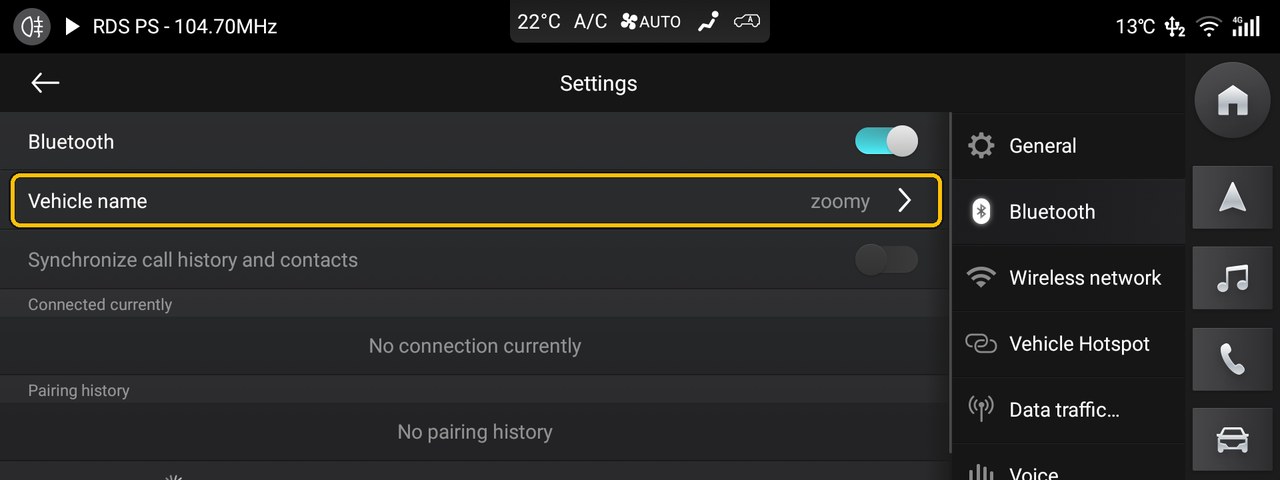
Open Bluetooth, then tap the Vehicle name row.
The name box opens with the keyboard — you are not really renaming anything.
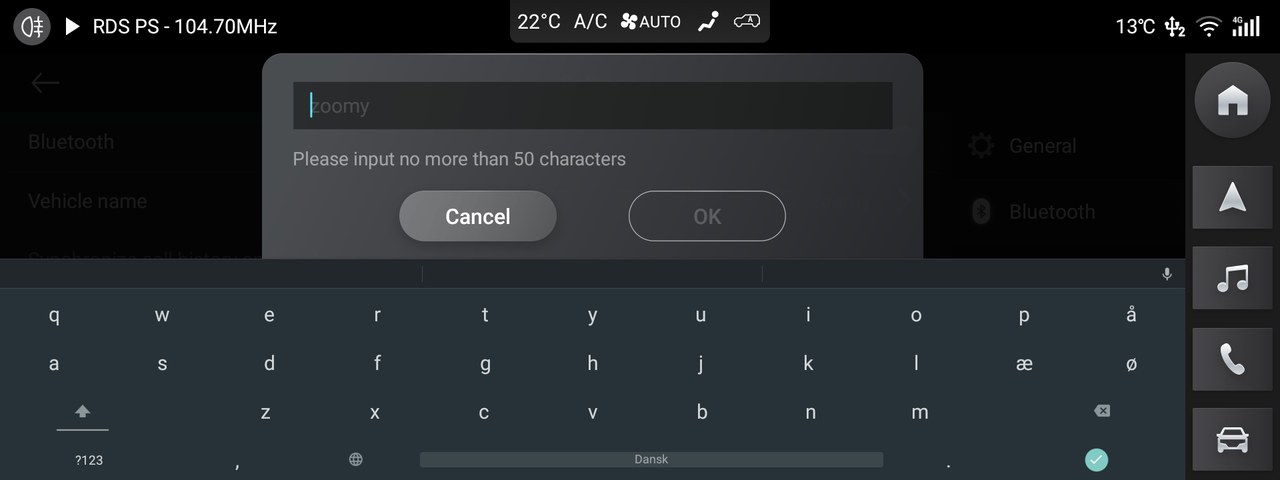
Press and hold the comma key until a small cog appears above it.
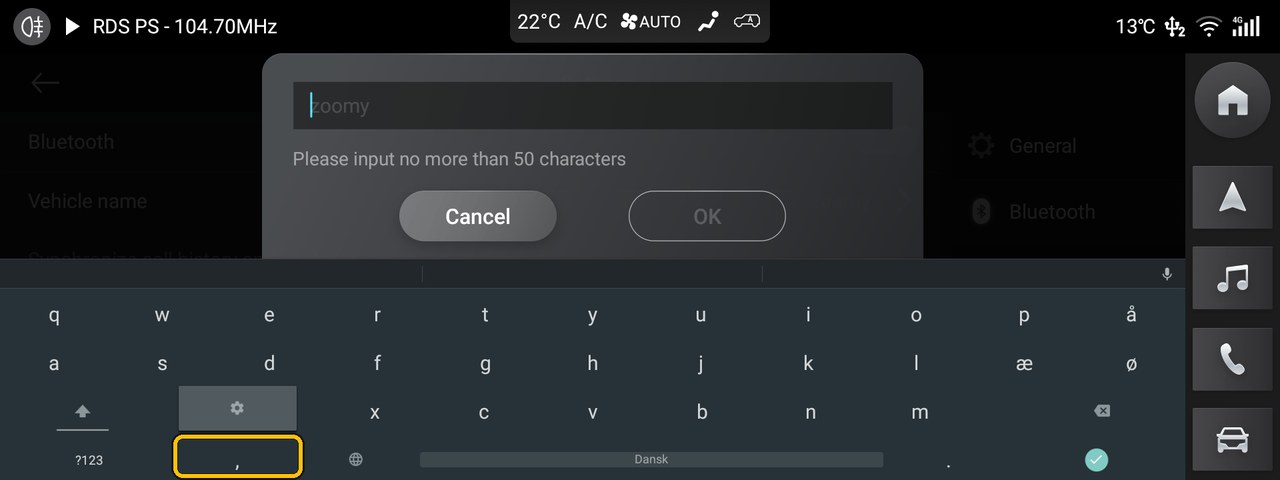
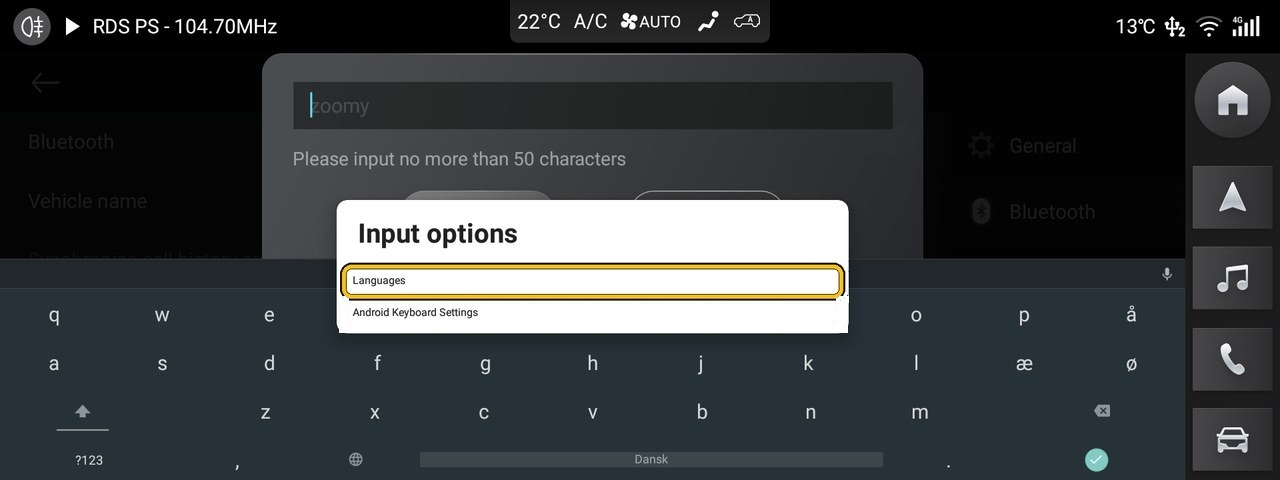
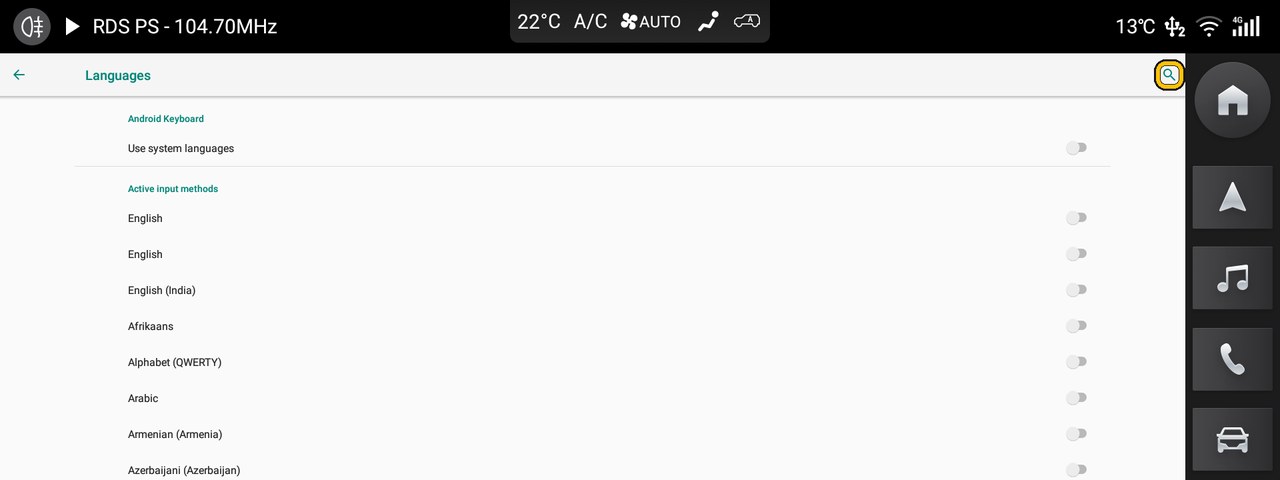
Release the key and tap the cog, then choose Languages — the first row. The page it opens has a search icon at the top right. Note: Android Keyboard Settings doesn’t have a search icon.
You are inside Android’s own settings now. Tap the search icon, top right.
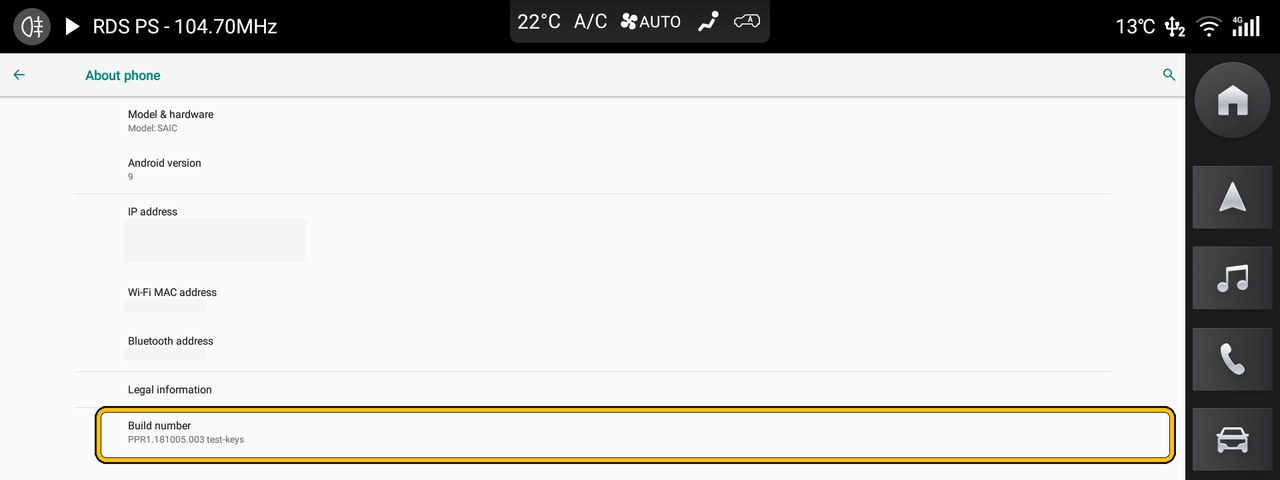
Type phone and open About phone.
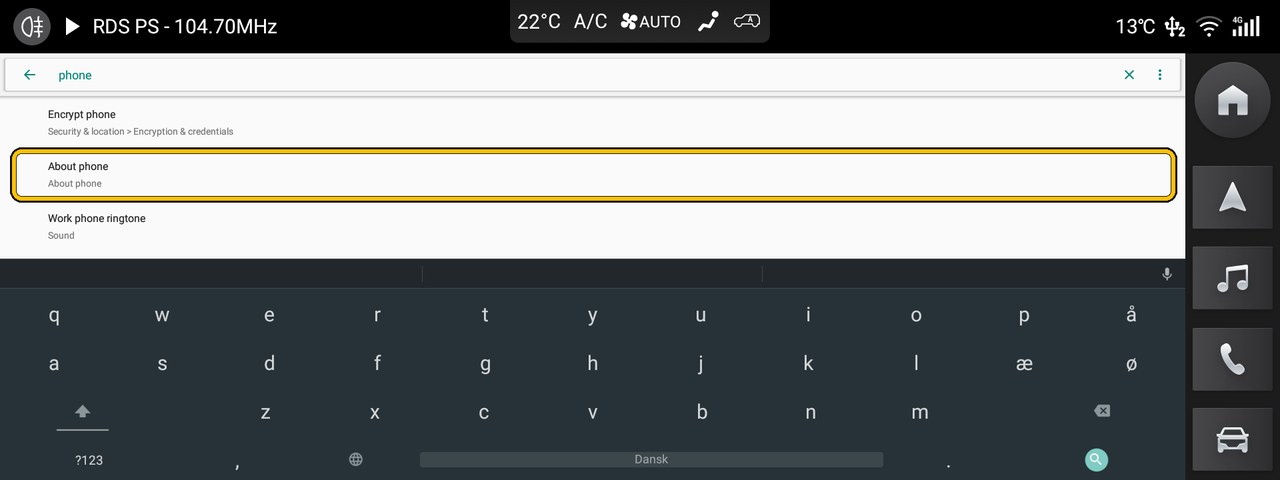
Press Build number seven times — it counts down as you go, then says developer mode has been enabled.
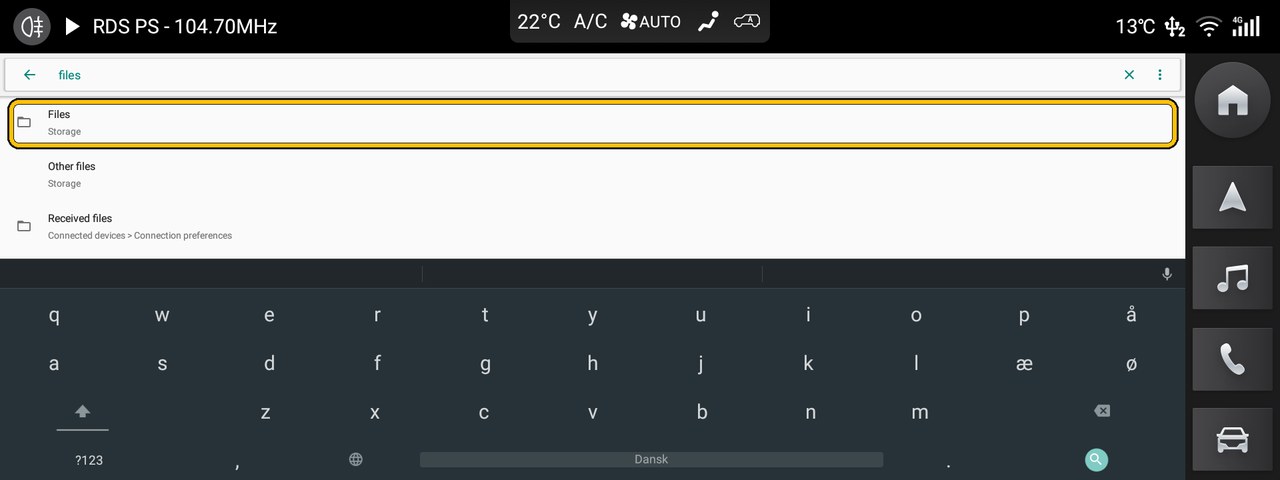
Search for file and open Files.
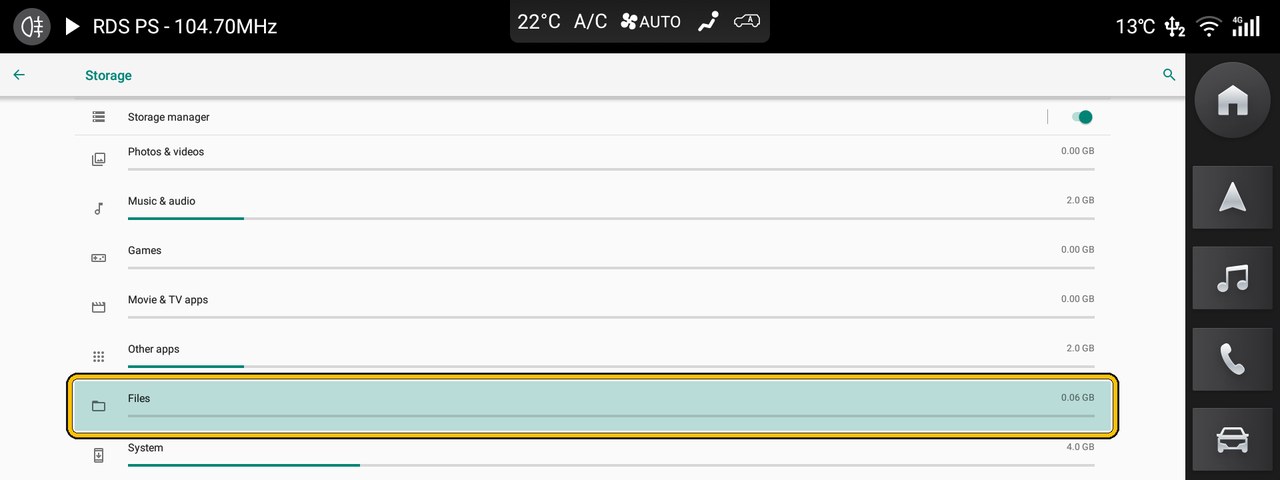
Files also sits near the bottom of Settings → Storage, as pictured, if your car shows you that list.
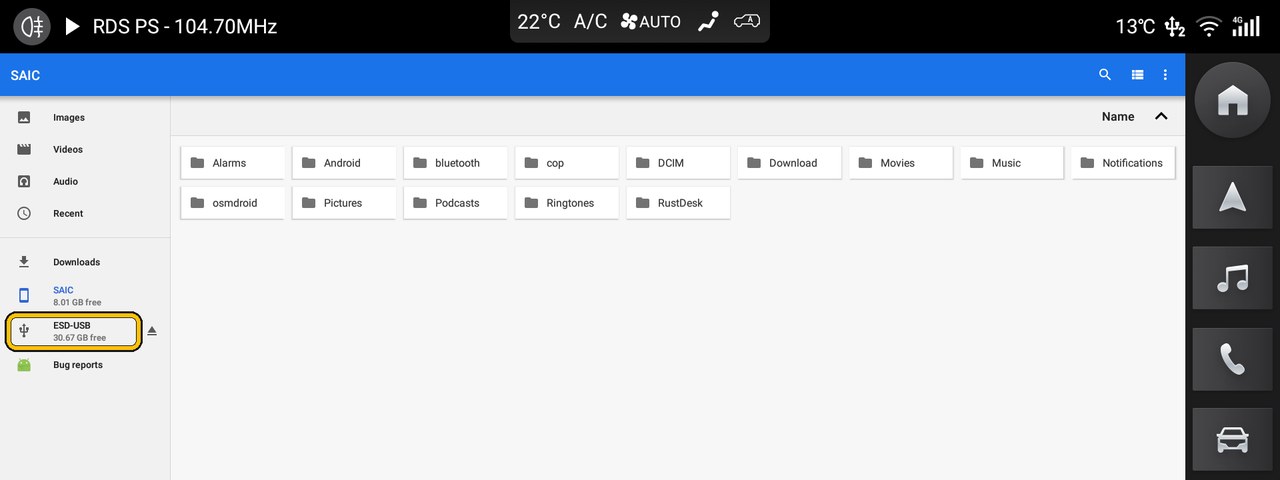
Open the USB drive — it is listed down the left as ESD-USB. Yours may be named something else; it should be easy to spot in that list.
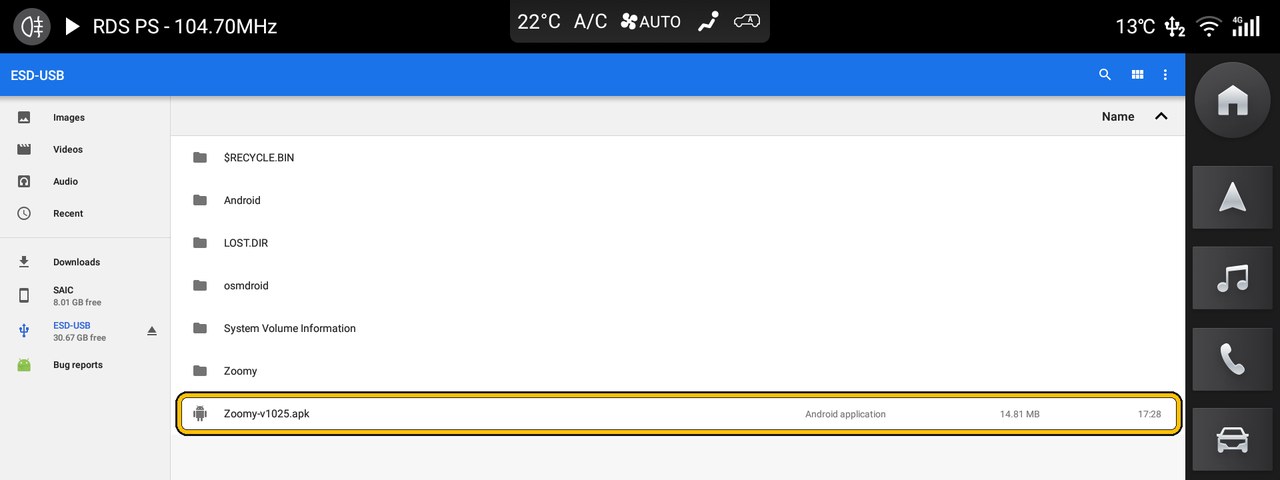
Tap the Zoomy .apk file on the drive — it is the only one there. The version number in its name will not match the photograph, and does not need to.
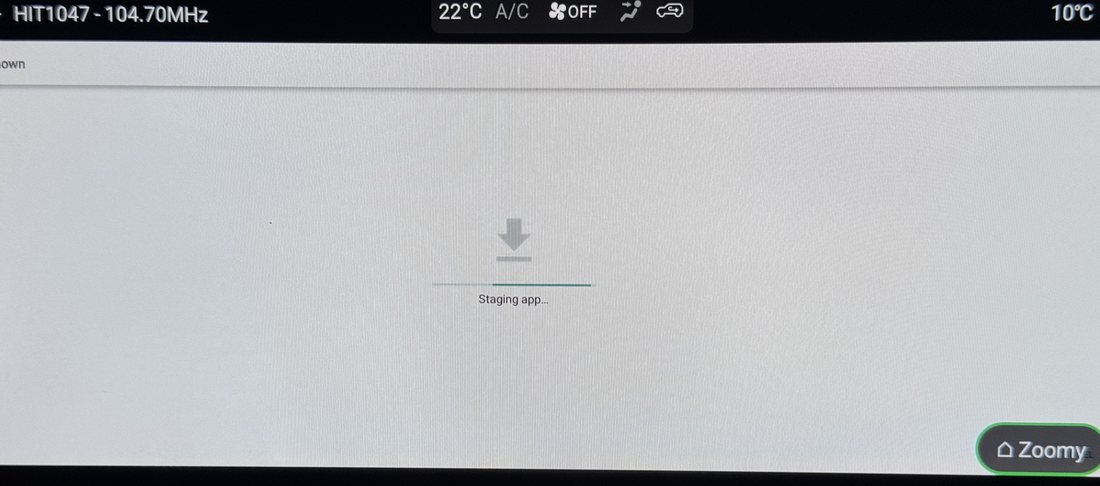
It says Staging app… for a moment. Let it finish.
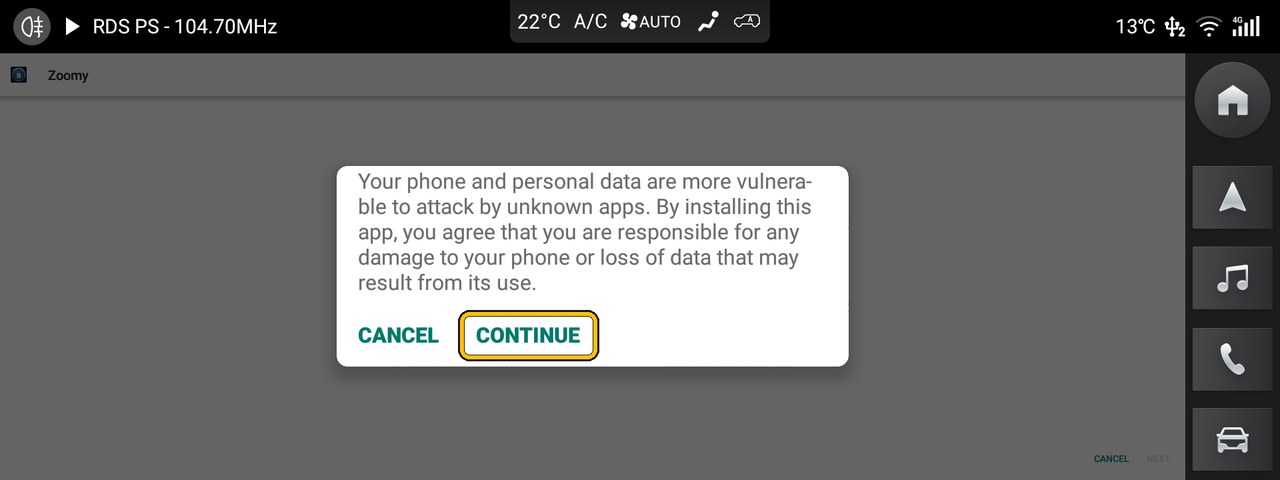
Tap CONTINUE on the unknown-apps warning.
Tap INSTALL, bottom right.
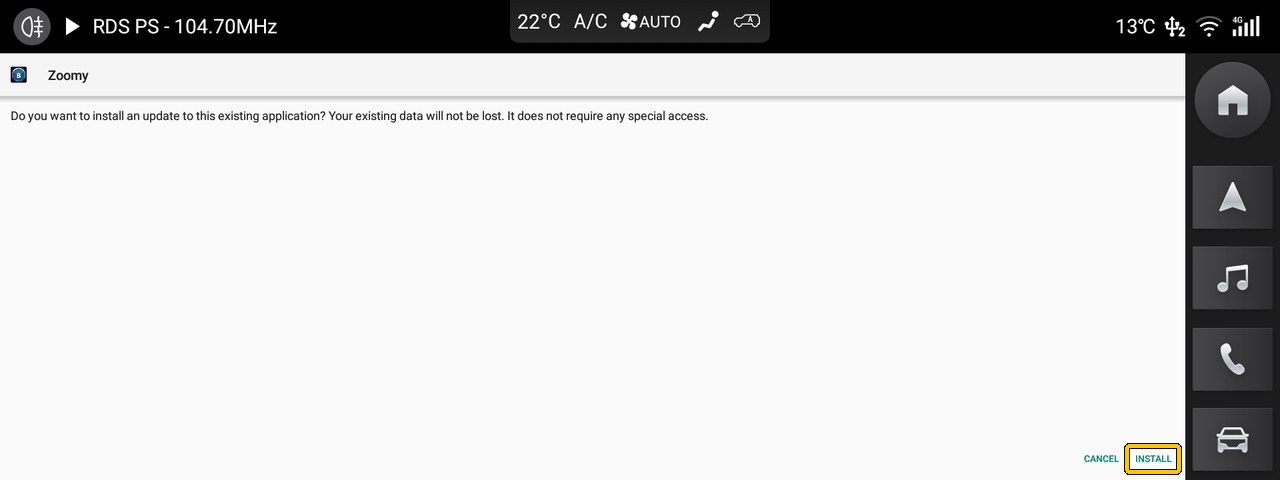
When it says App installed, tap OPEN, bottom right — not DONE. OPEN takes you straight into Zoomy. Zoomy does not open by itself the first time, and the star button works only after it has opened once. If you do happen to press DONE and you do not get the Zoomy icon, just re-install and ensure to press OPEN.
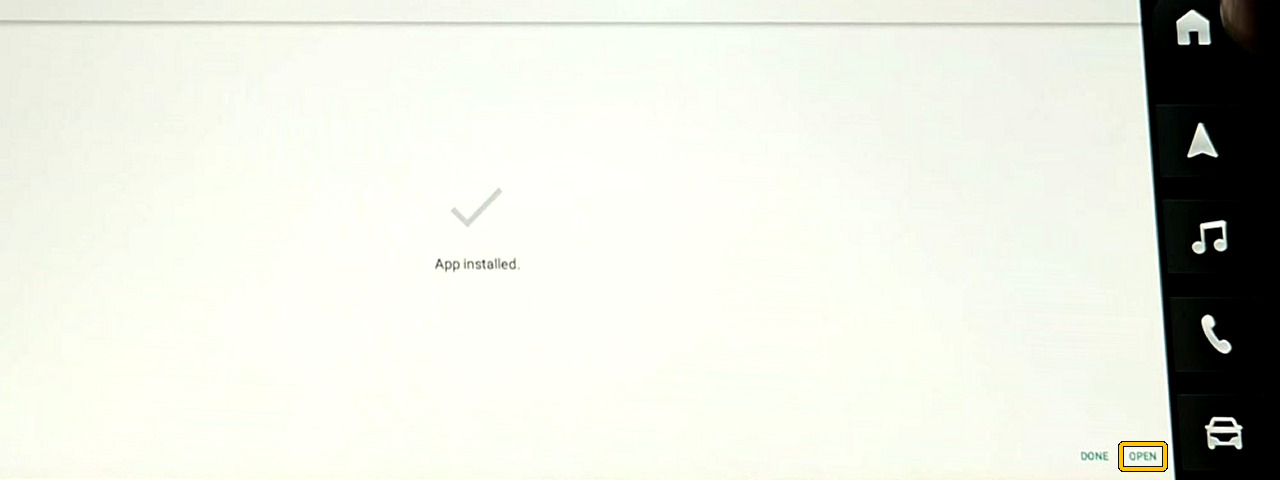
- Remove the USB — the install is complete. Keep the drive: you can use it later to take your car reports off, or to save your settings.
Open Zoomy
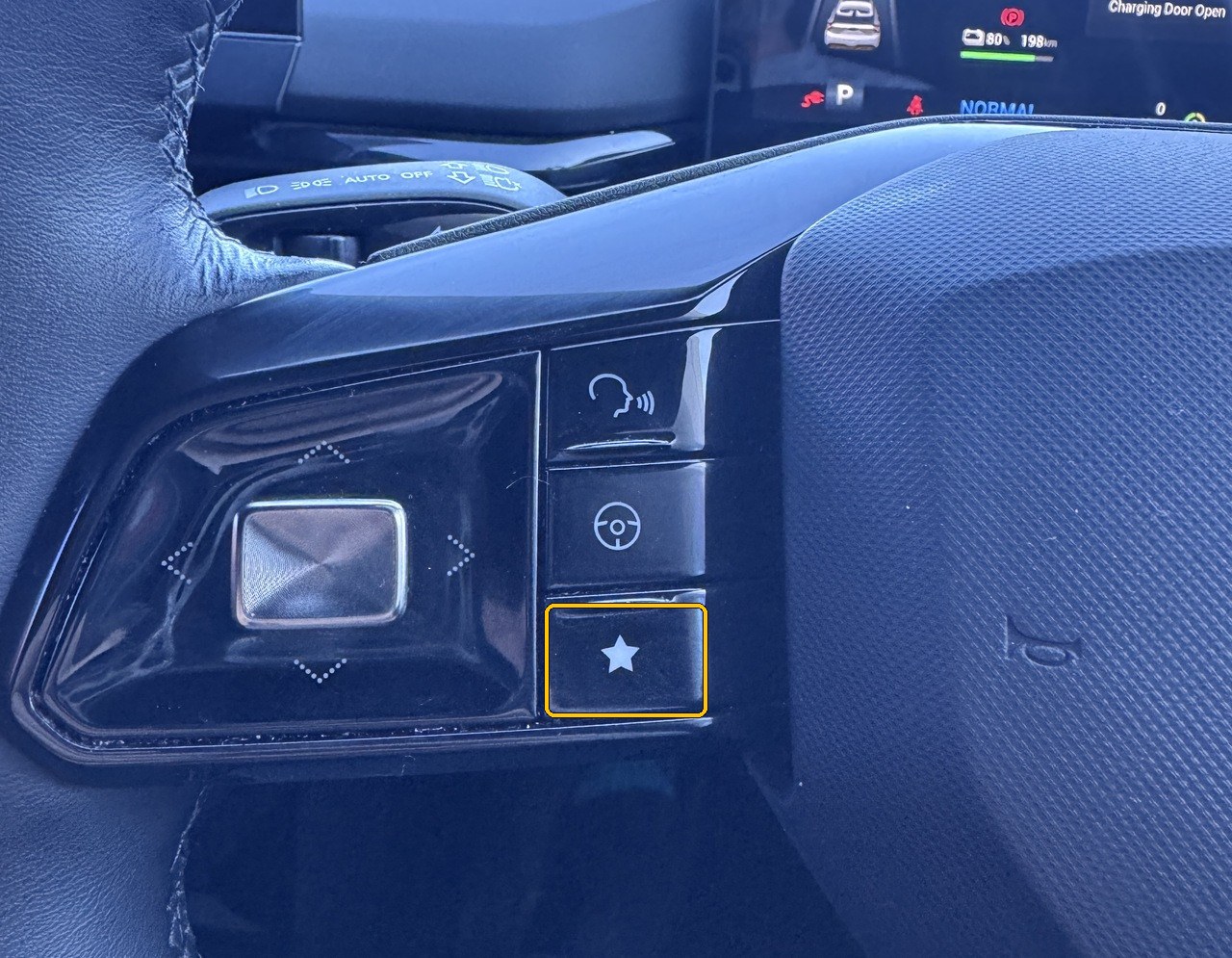
Tap OPEN when the install finishes. Zoomy does not open by itself the first time, and the star button works only after it has opened once. If you tapped DONE, tap the Zoomy file on the drive again, then INSTALL, then OPEN.
After that, press and hold the left-hand star (★) button and Zoomy opens.
If the star button does nothing, open Zoomy from the apps on the car’s own screen instead, then set Steering wheel Star button to RIGHT in Zoomy’s settings — the other star button will open it from then on.
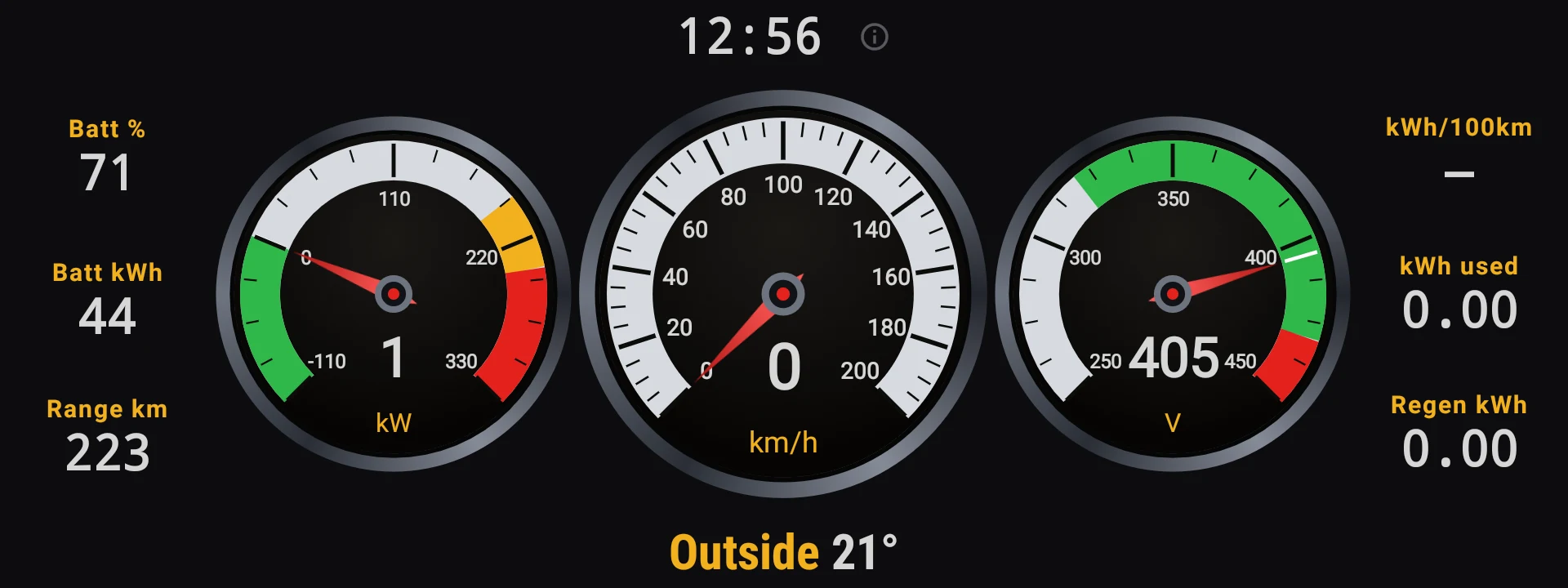
It lands on the Gauges page
That is the install finished. Swipe left or right for the other pages, or tap the top-left corner of the screen for the home screen with every icon.
Zoomy is ready
These pages work straight away, with no internet
- Gauges
- Tyres
- Trip
- Drive Stats — efficiency and trip costs
- Charging — charge history and costs
- Dyno
- G-Force — 0–100 times and g-force
- Profiles — driving profiles
- Sky — the night sky
- Screen Saver
- Music — the songs on your USB stick
- OBD — with your own OBD dongle
- Functions and Settings
These need Wi‑Fi, because they show something live from the internet
- Maps — the map itself.
- Conditions — the weather from the Bureau of Meteorology and UV from ARPANSA.
- Rain radar — also from the Bureau.
- Aircraft radar — live aircraft positions.
- Deep Space Network — what NASA’s dishes are talking to right now.
- EV vs ICE — works offline, but the pump prices are only live on Wi‑Fi.
- Lap — the lap timing works anywhere; the track map needs Wi‑Fi.
Connect the car to your phone’s hotspot in Zoomy: Settings → WIFI, then under Wi‑Fi networks tap your hotspot to join it.
Zoomy uses Wi‑Fi only. It never uses the car’s built‑in SIM.
Without Wi‑Fi, these pages are empty. Nothing is wrong: they fill in as soon as the car is back on Wi‑Fi.
You can also turn it off yourself. Settings → Internet stops Zoomy using the internet at all. The car’s Wi‑Fi stays on, so CarPlay and the car’s own maps keep working exactly as before.
Everything else works with no connection at all.
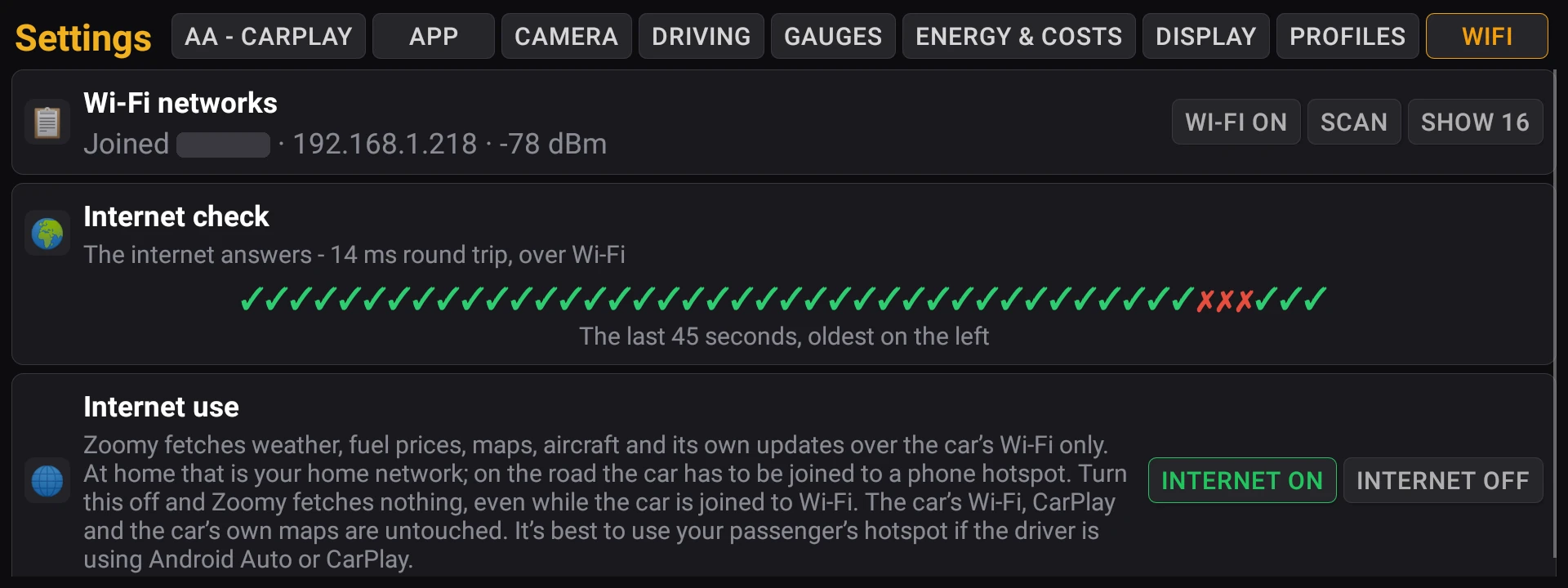
Every setting, tab by tab
Open the Settings tile. The tabs run along the top — tap one to see its cards. A lit (green) button is the one in use, and every change saves as you tap it. Nothing here needs the car in Park.

APPStart-up, your pages, the windows icon, the Zoomy button
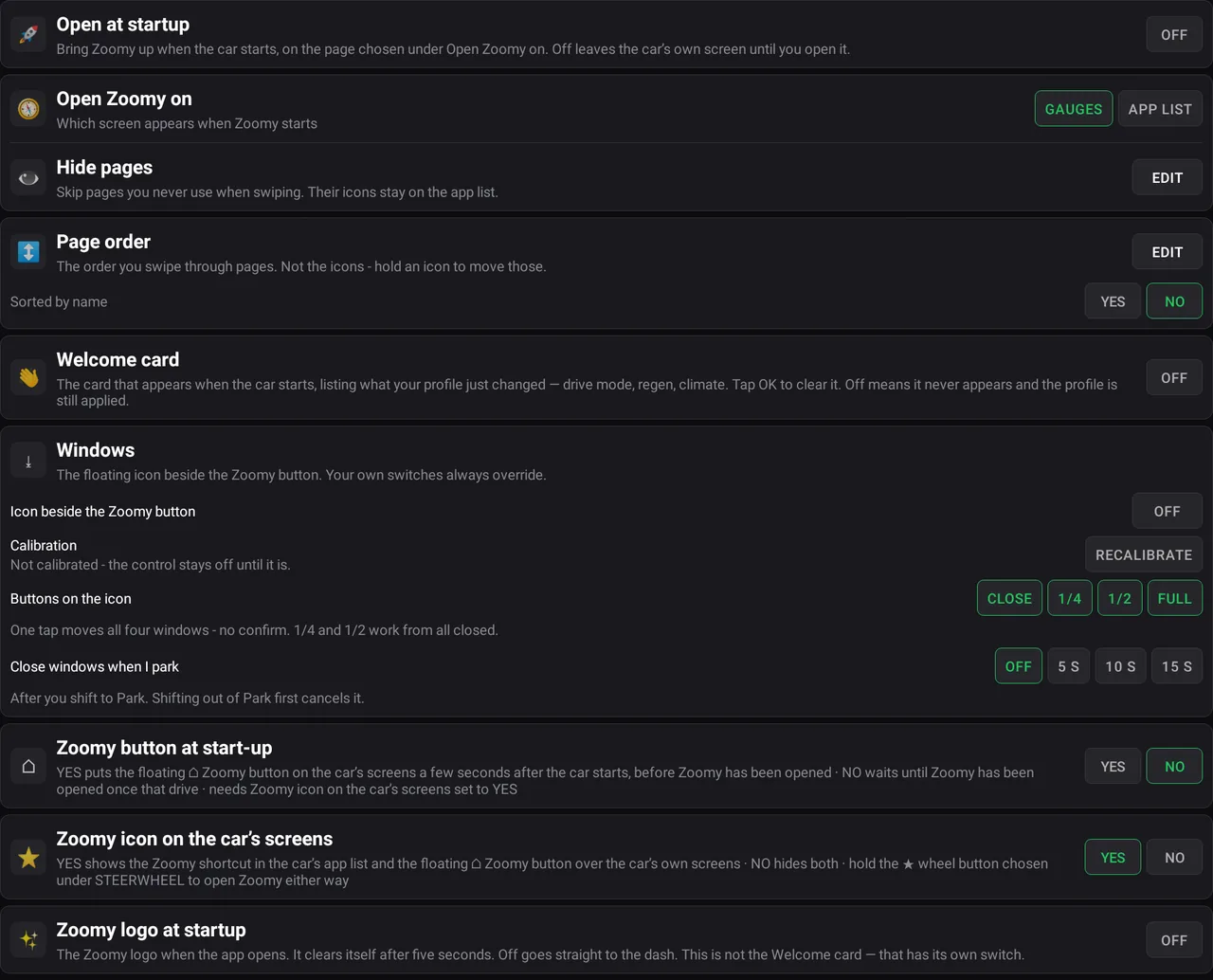
- Open at startup — ON brings Zoomy up by itself when the car starts. OFF leaves the car’s own screen until you open Zoomy.
- Open Zoomy on — The screen Zoomy opens on: Gauges (or another page you pick), or the app list.
- Hide pages — EDIT, then tap the pages you never use: swiping skips them. Their icons stay on the app list.
- Page order — EDIT changes the order you swipe through the pages. Sorted by name YES puts the pages and the icons in A–Z order. To move an icon, hold it on the app list.
- Welcome card — ON shows a card when the car starts, listing what your profile just changed. OFF hides the card — the profile is still applied.
- Windows — The floating window icon beside the Zoomy button: one tap closes all four windows, or opens them a quarter, half or fully. It first runs a short test of each window (Calibration) and stays off until that passes. Buttons on the icon picks which buttons it shows. Close windows when I park closes any open window 5, 10 or 15 seconds after you shift to Park.
- Zoomy button at start-up — YES shows the floating ⌂ Zoomy button a few seconds after the car starts, before you have opened Zoomy.
- Zoomy icon on the car’s screens — YES shows the Zoomy tile in the car’s app list and the floating ⌂ Zoomy button. NO hides both — then hold the ★ steering-wheel button to open Zoomy.
- Zoomy logo at startup — ON shows the Zoomy logo for five seconds when the app opens.
CAMERAThe camera when you indicate
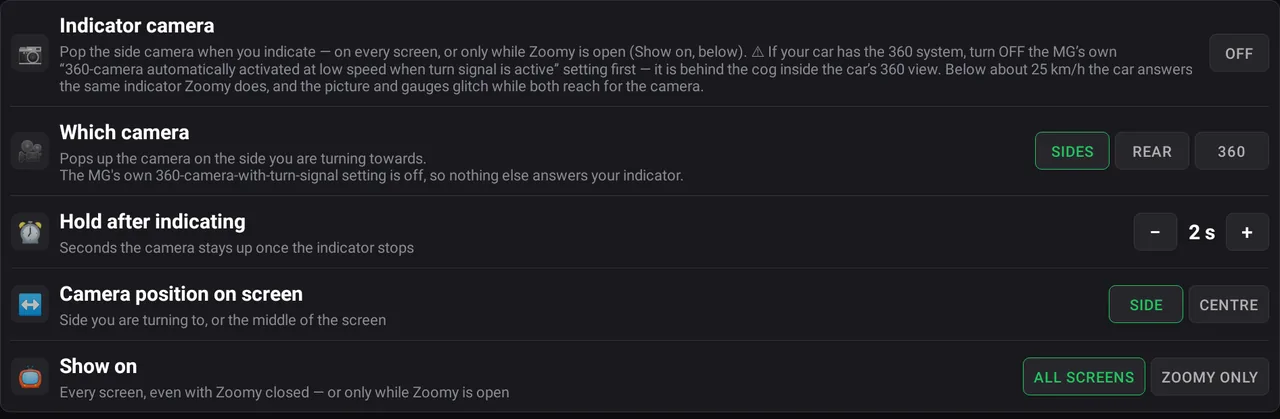
- Indicator camera — ON pops up a camera when you indicate. If your car has the 360 camera system, first turn off the MG’s own “360-camera automatically activated at low speed when turn signal is active” (behind the cog in the car’s 360 view), or the two fight over the camera.
- Which camera — SIDES shows the side you are turning towards. REAR shows the rear camera, in Park or Drive. 360 opens the car’s own 360 view below 25 km/h — only on cars that have it.
- Hold after indicating — How many seconds the camera stays up after the indicator stops.
- Camera position on screen — On the side you are turning to, or in the middle of the screen.
- Show on — ALL SCREENS shows it over everything, even with Zoomy closed. ZOOMY ONLY shows it only while Zoomy is open.
DISPLAYYour car, the dimming, text size
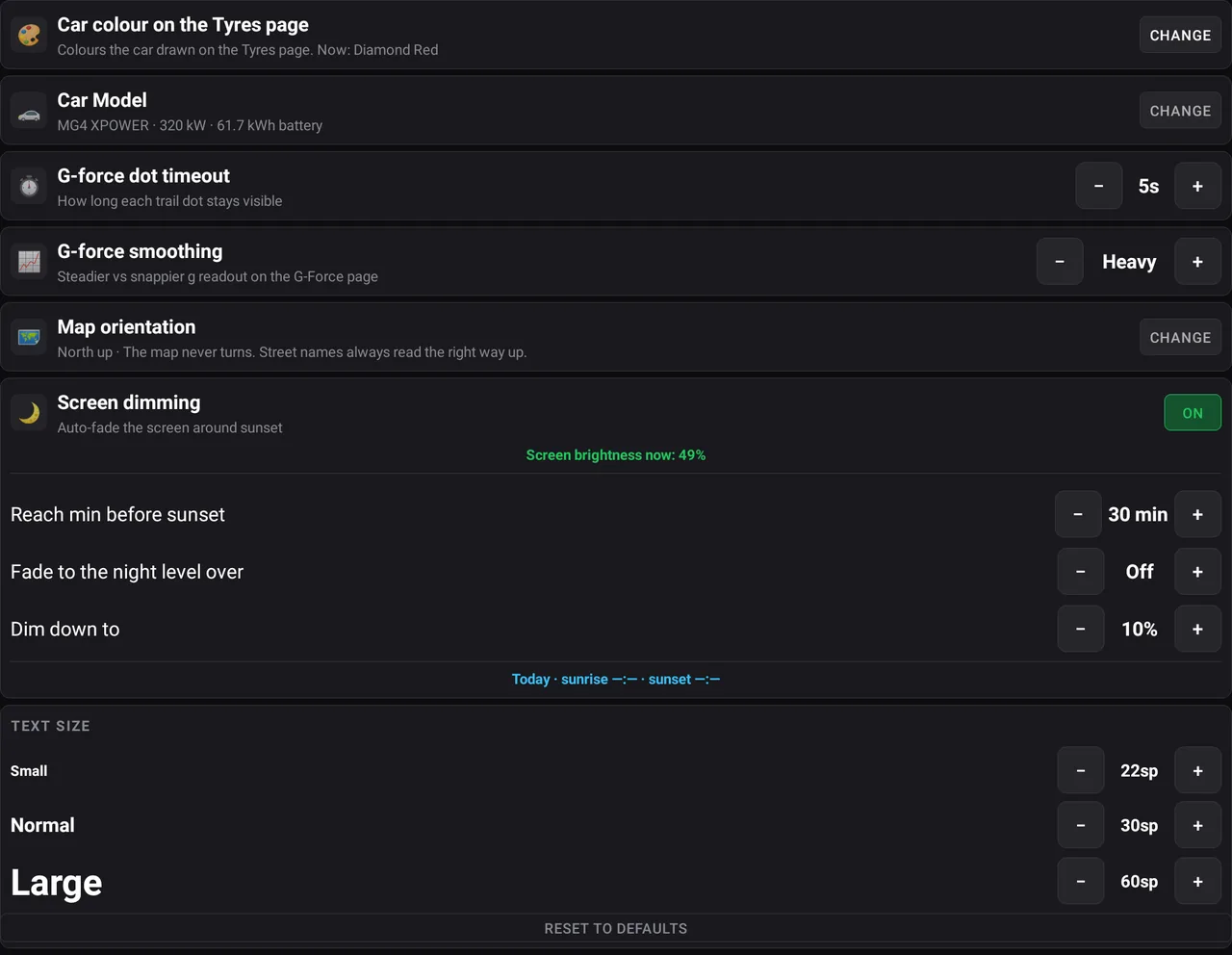
- Car colour on the Tyres page — The colour of the car drawn on the Tyres page.
- Car Model — Which MG4 you have — XPOWER, Long Range 77, Essence 64, Excite 64 or Excite 51. Pick yours so the battery kWh, range and power figures are right; battery kWh stays blank until you do.
- G-force dot timeout — How long each dot of the trail stays on the G-Force page.
- G-force smoothing — How steady or snappy the g reading on the G-Force page is.
- Map orientation — North up, North up with a compass, Heading up, or Heading up only above 30 km/h.
- Screen dimming — ON fades the screen down around sunset. Reach min before sunset sets how early it reaches the night level, Fade to the night level over how gradually, and Dim down to how dark. Zoomy never changes the brightness during the day.
- Text size — The three text sizes used across Zoomy’s pages. RESET TO DEFAULTS puts them back.
ENERGYNew trips and your power rates
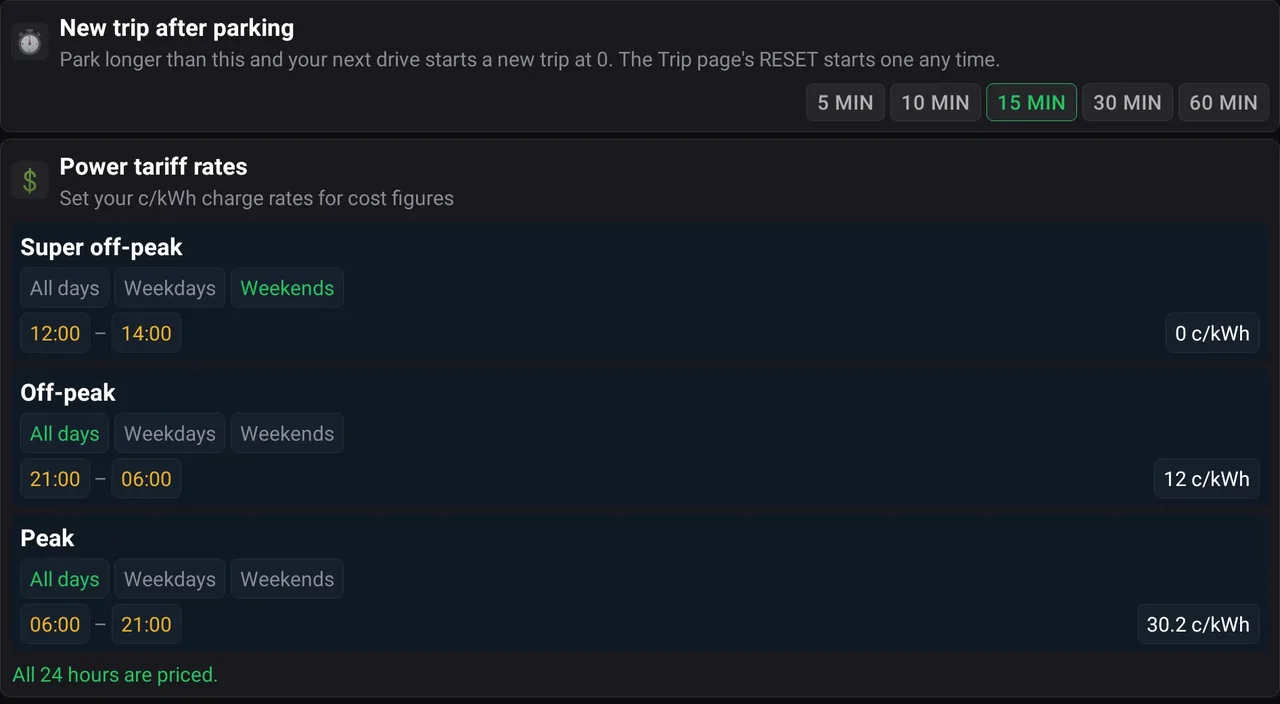
- New trip after parking — Park for longer than this and your next drive starts a new trip. The Trip page’s RESET starts one any time.
- Power tariff rates — Your home electricity rates in cents per kWh, with the days and hours each one applies to. Zoomy uses them to price your home charging, and says when every hour of the day is priced.
GAUGESThe Gauges page
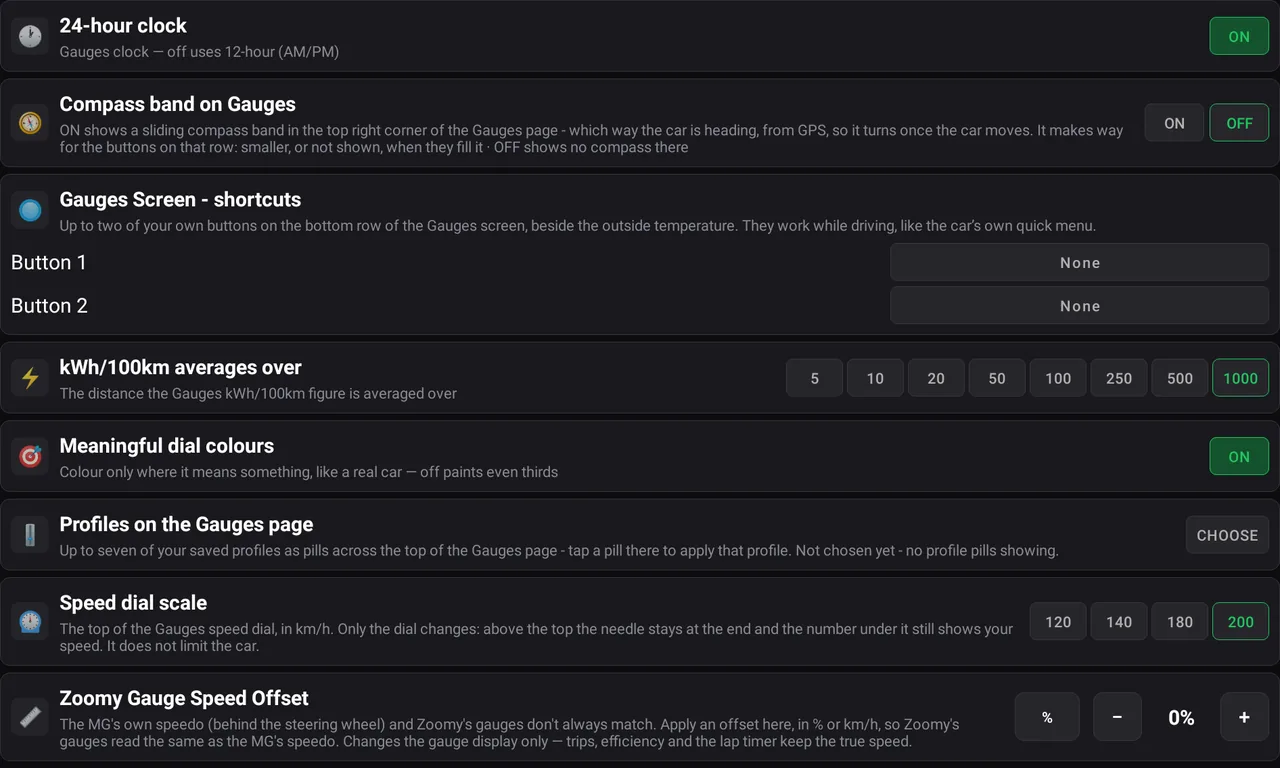
- 24-hour clock — OFF shows the Gauges clock as 12-hour (AM/PM).
- Compass band on Gauges — ON adds a sliding compass to the top right of Gauges, showing which way you are heading.
- Gauges Screen - shortcuts — Up to two buttons of your own on the bottom row of Gauges: lane keeping, one-pedal driving, the overspeed alarm, the speed-limit tone, the lane-warning sound, energy saving or the A/C, on or off — or the next driver profile. They work while you drive.
- kWh/100km averages over — How many kilometres the Gauges kWh/100km figure is averaged over.
- Meaningful dial colours — ON colours the dials only where it means something, like a real car. OFF paints them in even thirds.
- Profiles on the Gauges page — CHOOSE up to seven of your saved profiles to show as pills across the top of Gauges; tap a pill there to apply that profile.
- Speed dial scale — The top of the speed dial: 120, 140, 180 or 200 km/h. It does not limit the car.
- Zoomy Gauge Speed Offset — Makes Zoomy’s speed match the MG’s own speedo, in % or km/h. It changes the gauges only — trips and efficiency keep the true speed.
PHONECarPlay, Android Auto and the floating buttons
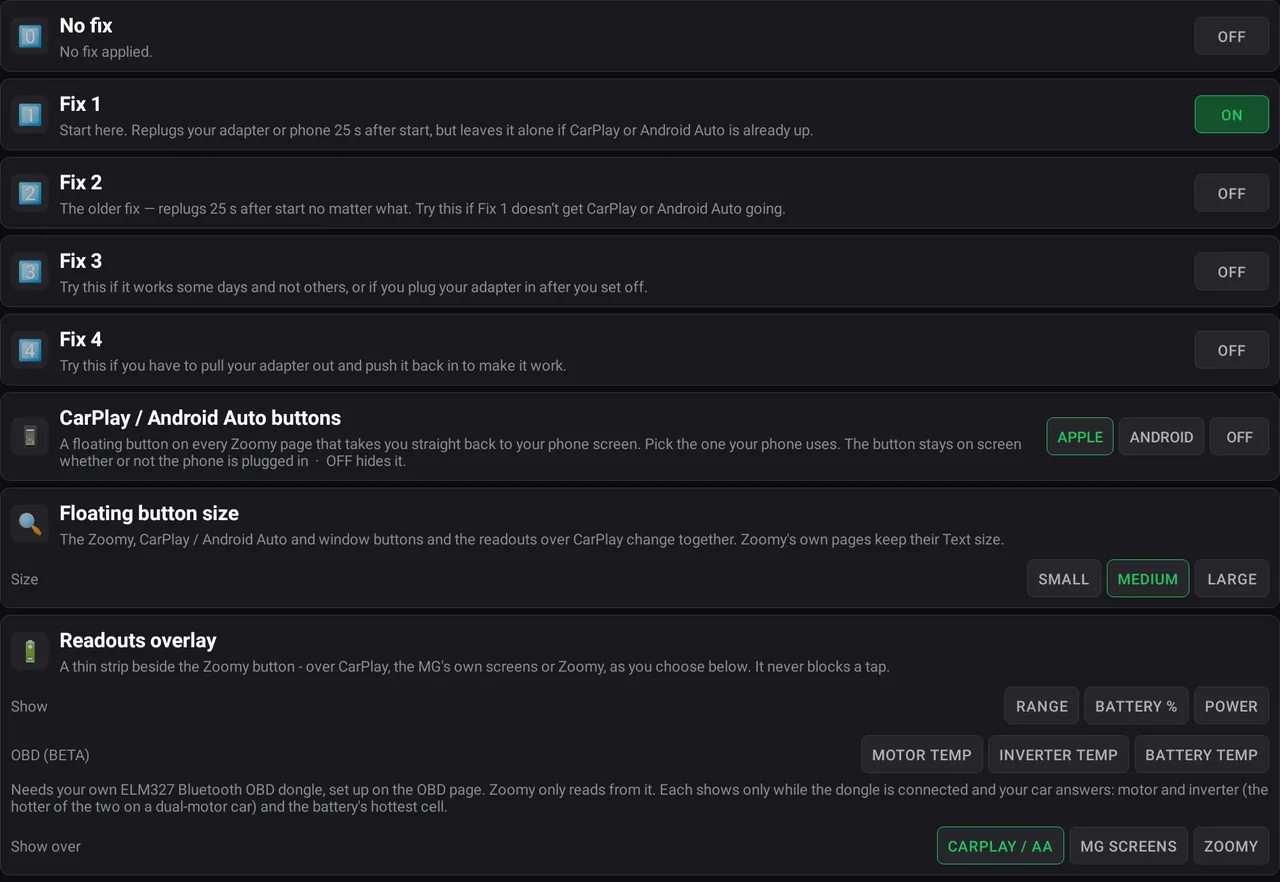
- No fix, Fix 1 – Fix 4 — What Zoomy does to help CarPlay or Android Auto start; only one is on. Fix 1 (start here) replugs your adapter or phone 25 seconds after the car starts, unless it is already up. Fix 2 replugs at 25 seconds no matter what. Fix 3 is for when it works some days and not others, or you plug in after setting off. Fix 4 is for when you have to pull the adapter out and push it back in. No fix does nothing.
- CarPlay / Android Auto buttons — APPLE or ANDROID puts a floating button on Zoomy’s pages that takes you back to your phone screen. OFF hides it.
- Floating button size — Small, Medium or Large, for the Zoomy, CarPlay / Android Auto and window buttons and the readouts together.
- Readouts overlay — A thin strip of figures beside the Zoomy button: range, battery % and power — and, with your own OBD dongle, the motor, inverter and battery temperatures. Show over picks where it appears: CarPlay / Android Auto, the MG’s own screens, Zoomy, or any mix. It never blocks a tap.
PROFILESWhich profile the car gets at start-up
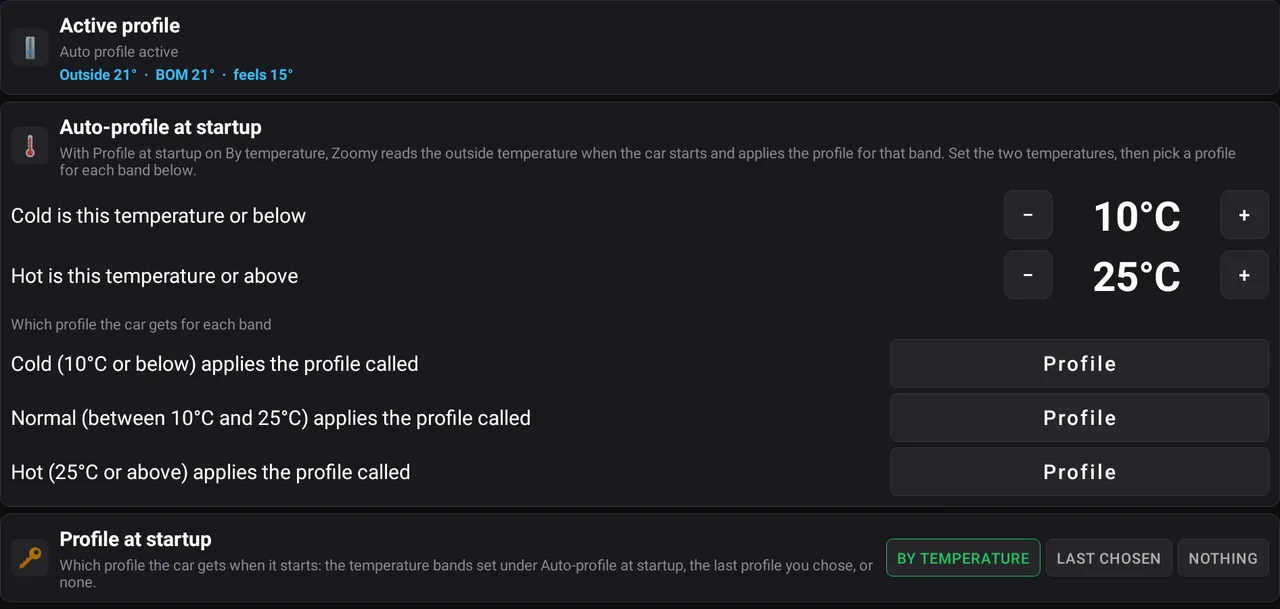
- Active profile — Which profile is on now, and the outside temperature.
- Auto-profile at startup — Set what counts as cold and hot, then pick the profile for each band: Cold, Normal and Hot.
- Profile at startup — BY TEMPERATURE uses the bands above. LAST CHOSEN applies the profile you picked last. NOTHING applies none. You make the profiles themselves on the Profiles page.
STEERWHEELThe two ★ buttons
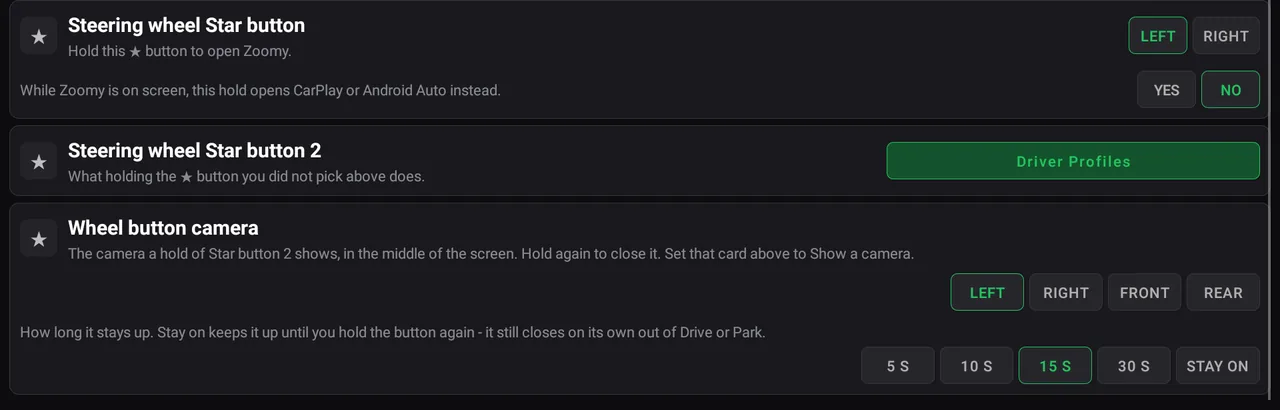
- Steering wheel Star button — LEFT or RIGHT: holding that ★ opens Zoomy. YES on the line under it makes the same hold open CarPlay or Android Auto while Zoomy is already on screen.
- Steering wheel Star button 2 — What holding the other ★ does: open the Driver Profiles page or a page you choose, switch to the next saved profile, show a camera, or nothing.
- Wheel button camera — Which camera Star button 2 shows — left, right, front or rear — and for how long, up to staying on until you hold again. It closes by itself when you leave Drive or Park.
WIFIWi-Fi and the internet
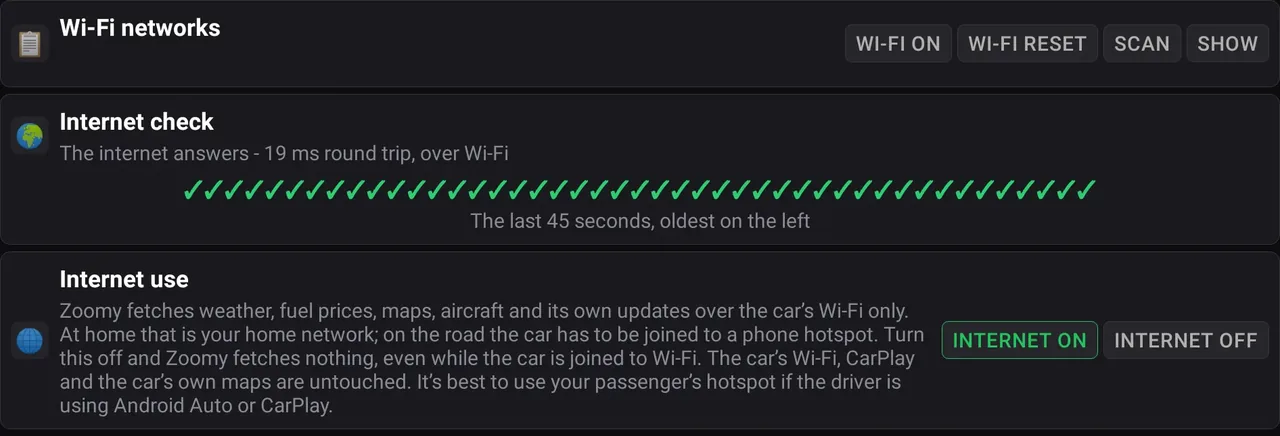
- Wi-Fi networks — Turn the car’s Wi-Fi on or off, RESET it, SCAN, and SHOW the list. Tap a network to join it (type its password the first time); hold a saved one to forget it.
- Internet check — A tick for each of the last 45 seconds the internet answered over Wi-Fi. It runs only while you are on this tab.
- Internet use — INTERNET OFF stops Zoomy fetching anything. The car’s own Wi-Fi, CarPlay and maps are not affected.
VERSIONSUpdates and versions

- Zoomy updates — With OTA ON and your licence code added (ADD LICENCE — it is in your purchase email), Check & download update fetches a new version over Wi-Fi, only when you tap it. Nothing installs until you tap Install downloaded update. OTA OFF means updates by USB only. The ⓘ shows what’s new.
- Below it — The Zoomy version installed, the car’s screen software, and the credits.
While you are driving
Four pages start out of the swipe order — the aircraft scope, deep space, the sky map and the screen saver. None of them helps you drive, so you will not swipe into one by accident.
- Change the list whenever you like — Settings → Hide pages.
- The rain radar is deliberately not one of the four — weather ahead helps you drive, the same as the map.
- Updating never changes your setup. If you already have Zoomy, an update leaves your pages exactly as you arranged them.
If something does not work
- Zoomy is already on the car — you do not need Android settings to update it. On Wi-Fi use Settings → VERSIONS → Check & download update; from a USB drive, open Functions → File manager, open the drive and tap the new file.
- No search icon after the cog — you chose Android Keyboard Settings, the second row, which has none. Go back, tap the cog again and choose Languages, the first row.
- The USB drive does not appear — check it is FAT32 and in the MEDIA USB port; if not, try the other port.
- Holding the comma does nothing — use the Amazon Music sign-in box instead and long-press @ there; see “Two ways in” below. There is no @ on the keyboard the Bluetooth name box gives you.
- The install is blocked — make sure Allow from this source is on for the same file manager you used to open the file.
- Zoomy installs but will not open — email zoomy@zoomyzoom.com.au with your MG4 model and screen software version.
Whichever route you use, you land on a page with a search icon at the top right; use it whenever these steps ask you to find an Android setting.
Two ways in — if one does nothing, use the other
The trick is to reach any text box, bring up the keyboard, and long-press the key that hides the settings cog. Which key that is depends on which keyboard you get, and you get a different keyboard depending on the kind of box you tapped:
- The Bluetooth name box — the route photographed above. It is an ordinary text box, so you get the ordinary keyboard, and the cog is under the comma.
- The Amazon Music sign-in box — open the music player, choose online music, then Amazon, and tap the username box. That is an e-mail box, so you get the e-mail keyboard, which has an @ on it — and there the cog is under the @. You may need the car’s hotspot on for the Amazon page to load at all. If a box pops up saying Possible tracking URL, tap No and the sign-in page loads.
When the install finishes, Zoomy appears with the other apps on the factory screen.
If Zoomy doesn’t installYou tap the Zoomy file and nothing happens, or the car says it can’t install apps from this source.
If you saw INSTALL and tapped it, Zoomy is already installed — you can skip this.
Otherwise the car has not yet allowed Files to install apps. Allow it once:
- Go back to the Android settings page with the search icon at the top right.
- Tap search, type Install unknown apps and open it.
- Tap Files in the list — the app you opened the USB drive with.
- Turn on Allow from this source.
- Go back to Files and tap the Zoomy file again.
You can turn Allow from this source off again once Zoomy is installed.
Installing an update
Zoomy never updates itself — there is no background check and no automatic download. Nothing happens until you tap. Your data stays in place either way.
- Over Wi-Fi — open Settings → VERSIONS, tap Check & download update, then Install downloaded update. Keep the Zoomy file’s name exactly as it downloaded: its last 10 characters are your licence code.
- From a USB drive — copy the new file to the drive, then in Zoomy open Functions → File manager, open the drive and tap the file to install it over the top.
- No Check & download update button? Your Zoomy is older than the Wi-Fi updates — update once by USB, and the button is there from then on.
Removing Zoomy
If you would rather Zoomy was not on the car for whatever reason:
- Plug a USB drive into the car.
- In Zoomy, open Functions → Delete Zoomy from the car and tap REMOVE.
- Let Zoomy save and check the backup (it uses a good one already on the drive if there is one), and wait until it says the drive is safe to remove.
- Confirm removal on the car’s uninstall screen.
The backup on the drive is then the only copy. Zoomy erases its own data a moment after the uninstall screen opens, whatever you answer there, so keep that drive.
The backup holds your settings, profiles, trips, charge history, GPS trails and a copy of the Zoomy file. Keep the drive until Zoomy is reinstalled and your data restored. Removing Zoomy does not change the car’s drive mode, regen, lane assistance or any other vehicle setting.
Or reset the whole Infotainment System. The car’s own factory reset clears everything that has been added to the screen, Zoomy included.
Do the Zoomy backup first if you want to keep your history. A factory reset saves nothing — your trips, charges, profiles and settings go with it, and there is no other copy. It also resets the rest of the head unit, not just Zoomy: paired phones, radio presets and your screen settings all go back to how the car left the factory. Return to factory above is the one that keeps your data.
- Install and removal steps — both are on this page and nowhere else. Your download is the app itself, so there is no copy to go stale in it.
- Privacy information.
- Independent-project disclaimer.
Need a hand?
Email zoomy@zoomyzoom.com.au and say what happened, with your MG4 model and screen software version.